![logo.png]](https://kb.prologicfirst.online/hs-fs/hubfs/Imported%20sitepage%20images/logo.png?height=40&name=logo.png)
The @Your WISH Mobile app offers a variety of features designed to enhance your experience:
- Dashboard
- Create a service request
- Manage service requests
- Chat and Notifications
The app can be downloaded from PlayStore or AppStore
Configuring the App
- Reach out to your IT Team or Prologic First Support to obtain the necessary server URL and credentials.
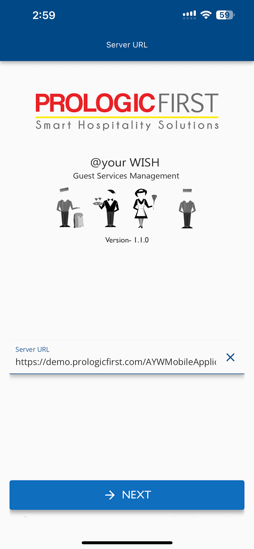
- Enter the server URL and click the NEXT button to continue.
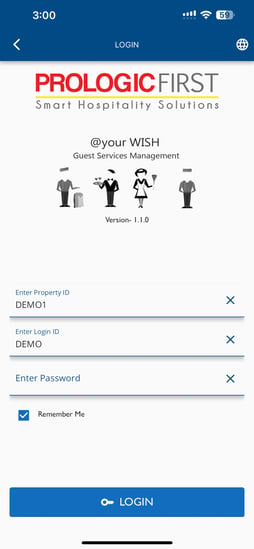
- Enter your Property ID, Login ID, and Password to log into your account and gain access to the app's features.
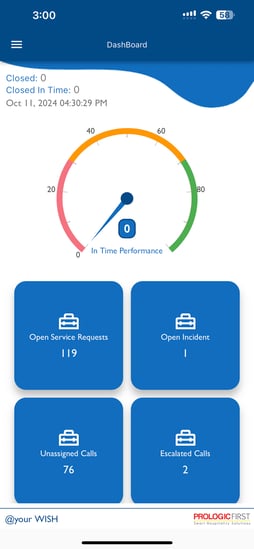
Dashboard
- The home screen features a comprehensive dashboard that allows you to easily view and monitor the status of your service requests.
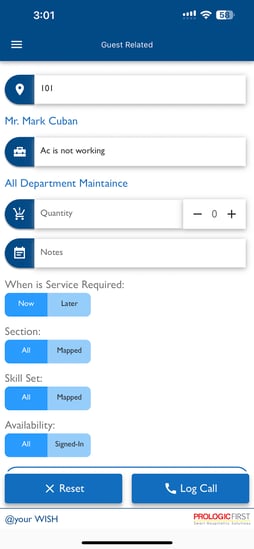
Creating Service Request
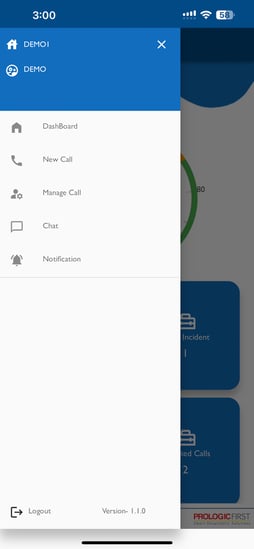
- Select the expand icon located at the top left corner to access the menu options, then choose "New Call" to proceed.
Services can be requested for both Guests and Internal Departments by selecting the appropriate service type.
- Input the room number along with the details of the service to submit your request.
Services can also be scheduled for a later time by selecting the desired date and time.
Manage Service Requests
- To view the available options, tap the expand icon located in the top left corner and then select the "Manage Call" option.
- Choose the service request you wish to oversee and manage.
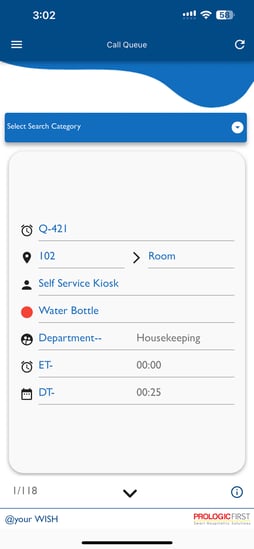
You can also filter the services based on specific categories.
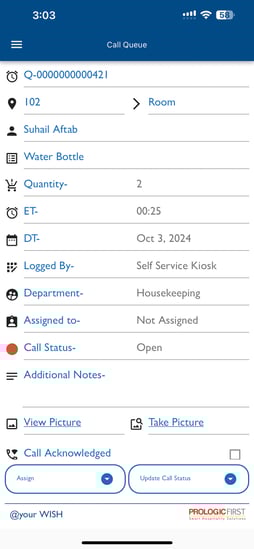
The following updates can be performed from the Manage Service Requests section:
- Mark call acknowledged
- Take Pictures
- Assign / Reassgin ticket to users
- Update call status
Chat
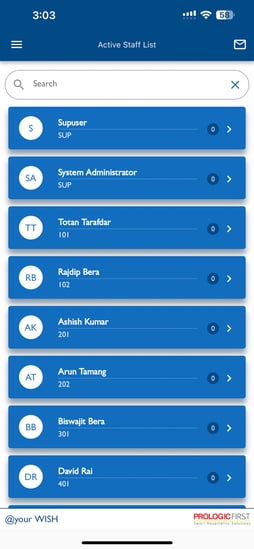
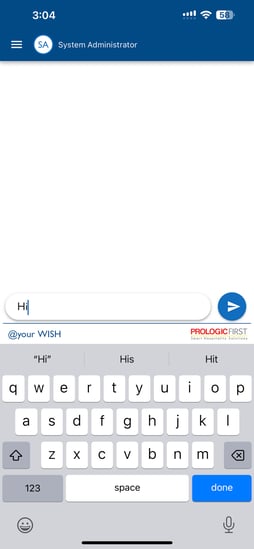
- You can initiate a chat with other users by tapping the expand icon located in the top left corner, then selecting the Chat option from the menu.
- Locate the desired user and initiate a chat with your colleagues.
Notifications
- To access notifications related to service requests, tap the expand icon located in the top left corner, then select the Notifications option.
The mobile app can send you notifications regarding the status of your service requests. To receive these updates, ensure that notifications are enabled for this app in your device's settings.