![logo.png]](https://kb.prologicfirst.online/hs-fs/hubfs/Imported%20sitepage%20images/logo.png?height=40&name=logo.png)
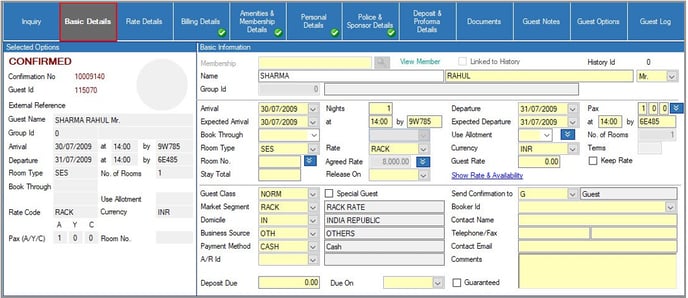
- Name: Enter the guest's name, starting with the last name, followed by the first name and title. Titles can be selected from the dropdown menu.
After entering the guest’s last name, pressing the Tab key will display a small window with a list of Guest Histories that match the last name. You can select the correct history from this list to link it with the guest's reservation.
To link a history to the reservation, simply select the desired history record and click the Link button.
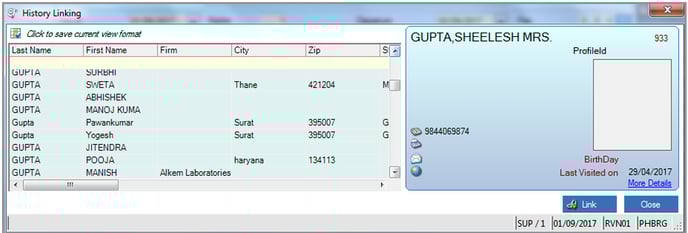
You can also filter the history records. To use the filter, enter your criteria in the appropriate column of the first row and press Enter.
-
Guest Through: Select the source through which the guest is booked: None, Corporate, Travel Agent, or Operator.
-
Firm Name: If the company where the guest works differs from the company, travel agent, or operator through which the guest is booked, enter the name of the guest's employer in this field.
-
Arrival Date: Enter the guest's arrival date either by typing it in the field or by selecting it from the calendar.
-
Group ID/Name: If the guest is part of a group, this information will be automatically populated.
After pressing Tab, the system will display a list of matching reservations to help avoid duplicates.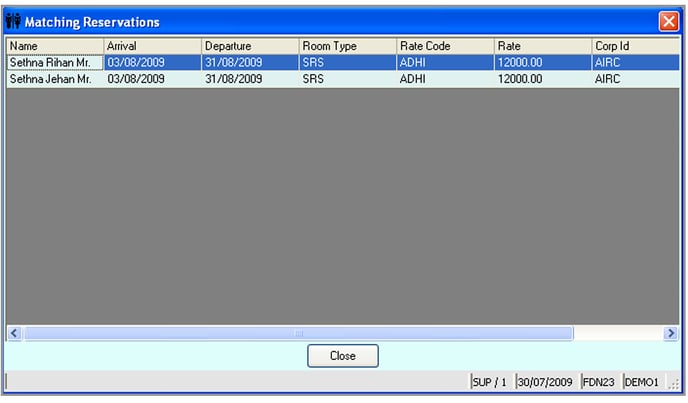
-
Nights: Specify the number of nights for the guest’s reservation.
-
Departure Date: This field auto-populates based on the arrival date and the number of nights.
-
Number of Rooms: Use this field for multi-room reservations. The default value is one, and a value of zero is not permitted. The maximum allowed value is nine. If you enter a number greater than one, the system will generate individual reservations for each room, copying all details (except for Room Number, if specified) under a single Confirmation Number. All rooms will be of the same type.
Note: Multi-room reservations can only be created collectively. All other operations—such as modification, cancellation, and check-in—must be performed individually for each reserved room.
-
Adults/Youth/Child: Specify the number of adults, youth, and children occupying the room, as this may directly affect rates due to multiple PAX charges.
-
Room Type: Select the preferred room type for the reservation by clicking the dropdown arrow next to this field.
-
Upgraded From: This field indicates the original room type booked and quoted to the guest. It allows for upgrades to a higher category of rooms without affecting the rates.
-
Room No.: Enter the guest’s room number by clicking the
 button next to this field to select from the available rooms.
 -
Rate & Currency: This field defines the rate charged to the guest. To select or change the rate, click the dropdown arrow next to this field. In the currency field, choose the currency
for the room rate. Click the
 button at the end of the row to check the rate.
 -
Agreed Rate: This is the nightly rate charged to the guest for accommodation, associated with the selected rate code defined in the rate code setup.
- There is a small button next to Agreed Rate - . Clicking on this button
 opens a small screen to calculate the discounted rate (if any) on the Agreed Rate.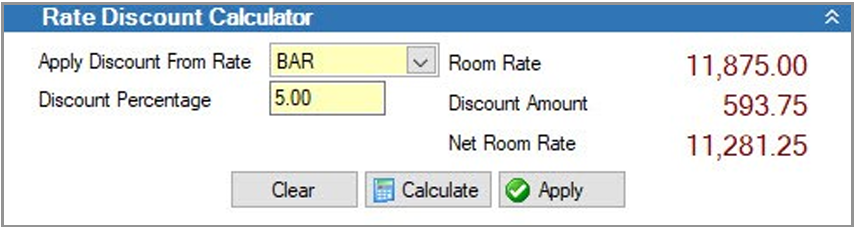
- There is a small button next to Agreed Rate - . Clicking on this button
-
Guest Rate: This field allows for a discounted rate for the guest. During rate code setup, an override is permitted; thus, a guest on that rate code can receive a discount. For example, if the predefined rate for a specific room type is 9,000 and the guest is given an ADHOC rate of 7,500, the manual rate for this guest will be 7,500.
-
Terms: This indicates which plan is included in the room rate. During the Night Audit, the system will separate the plan component from the room rate and allocate it to F&B Revenue.