![logo.png]](https://kb.prologicfirst.online/hs-fs/hubfs/Imported%20sitepage%20images/logo.png?height=40&name=logo.png)
There are 2 types of charge routing. Routing of charges from one folio to another within the same guest’s bill
and routing of charges to another account (guest/ group/ special account.
Charges can be transferred to the account of another Account with the help of the Account Id.
To assign a Charge Code to a folio or another guest, a valid combination of the Department Code and the
Account Code must be entered.
If department code is selected, the routing will be applicable for all the charges of that department. E.g. If
coffee shop is selected and folio 2 is selected, all the charges from coffee shop will get transferred to folio 2
If account code is selected, the routing will be applicable for all the charges having that particular account
code. E.g. If food is selected and folio 2 is selected, all food charge irrespective of which outlet/ department it
is coming from will get transferred to folio 2.
If department code and account code both are selected, the routing will be applicable for that particular
charge code only. E.g. If Coffee Shop, food and folio 2 is selected, only coffee shop food will go to folio 2.
System also gives flexibility to save the routings as templates and use them for other guests with the same bill
routing requirement.
Member Bill Routing Details:
Member Bill Routing Details is a template for all the members of a group. This is done for directing some charges to be or already incurred by all group members to the members’ folios. For example, Laundry Charges for all the members of the group may be directed to Folio 2 of each member of the Group, Telephone Charges
to Folio 3, etc.
Click ‘Member Bill Routing Details’ button on Group Details screen to create Billing Mask template for each of the group member. System will display this screen.
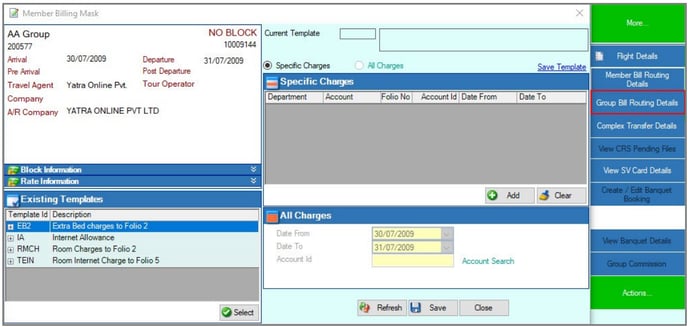
To route the charges to the Group Master
1. Click on Add (Alt+A).
2. Select Department/ Account or both whichever is applicable for the charges to be routed.
3. Enter Account Id of the Group Master.
4. Click on Save (Alt+S).
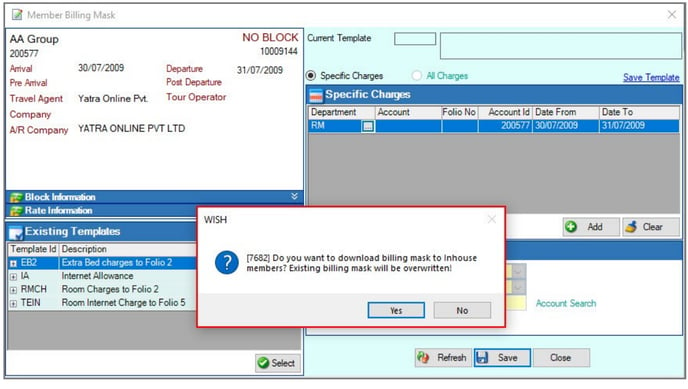
5. Click on Yes to apply the Bill Routing to the In-house Group Members.
6. Click on OK.
Group Bill Routing Details:
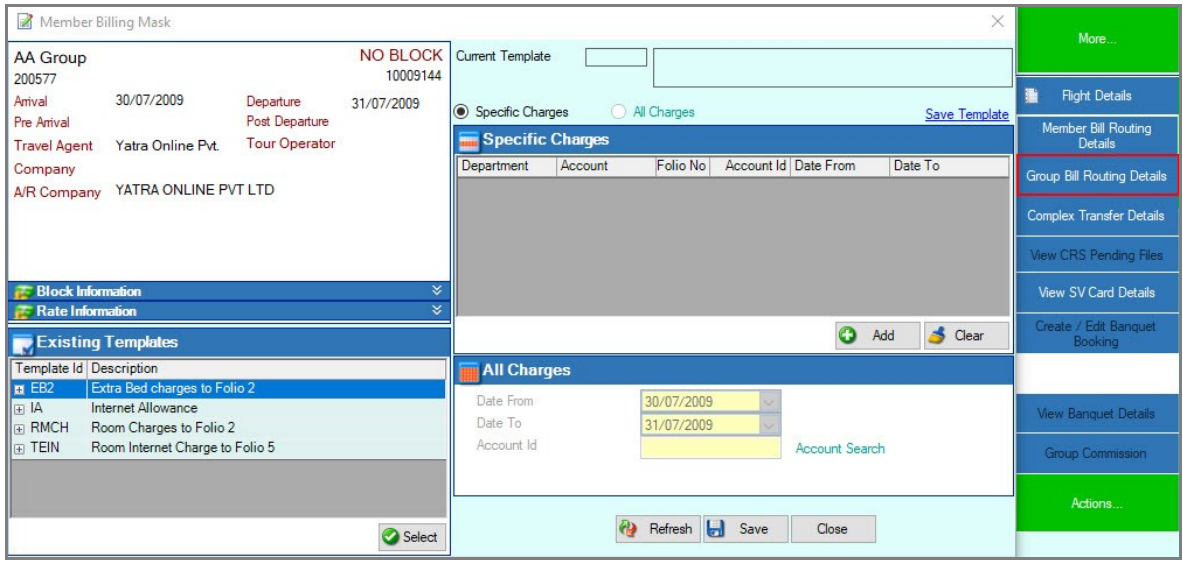
Group Bill Routing is done for the group master. This option allows to route the charges (charges already routed from Group members to Group Master) in Group Master’s Bill to different folios.
Account Id is disabled in Group Master Bill Routing, thus charges can be routed to different folios only.
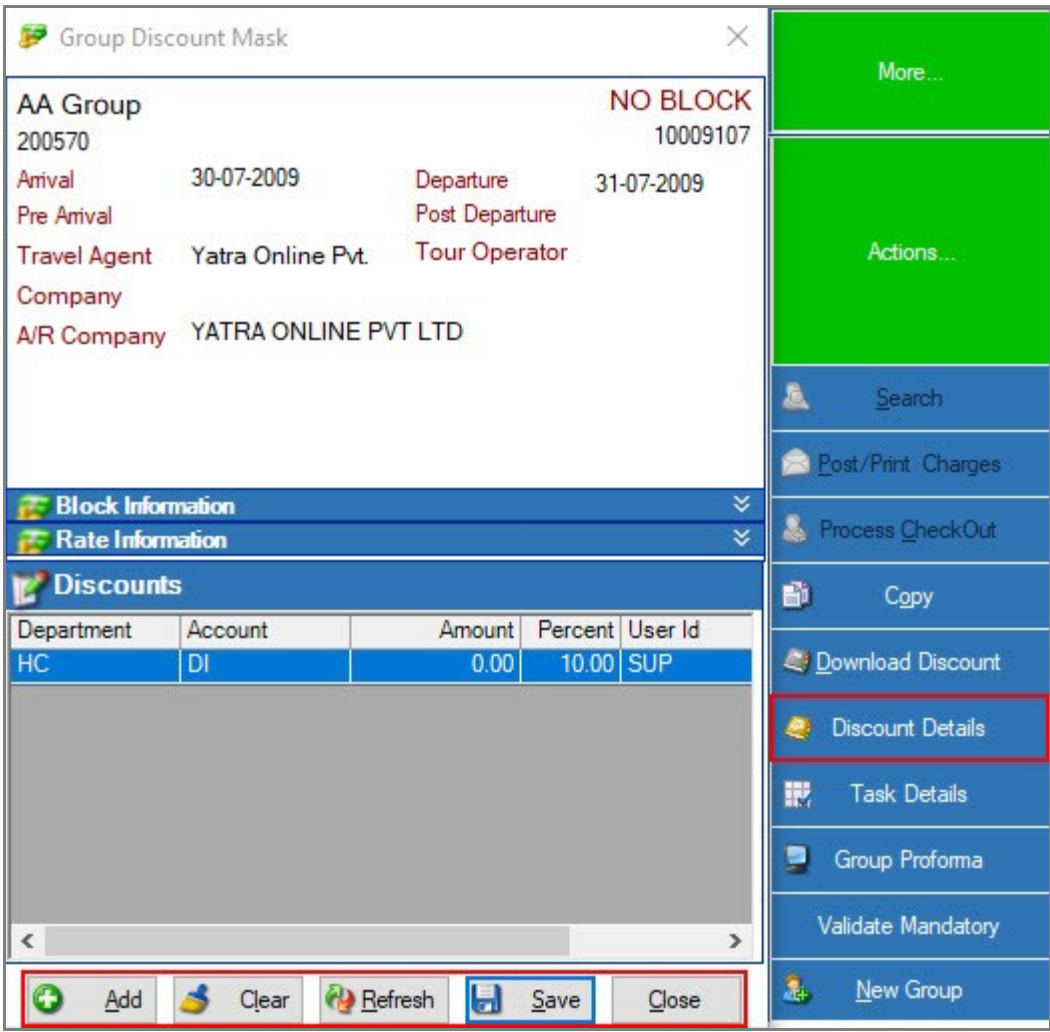
Discount Details:
This option is available for setting up discount masks that hotel wants to offer to a guest/ group. Discount can be offered on Department, Account and Charge. It can be percentage or fixed amount and is applicable on Non-Room related charges.
Note: If the POS is applying the discount then Discount Mask should not be set else system will further
discount the discounted charge that is getting posted to the guest account.
EXAMPLE
A discount on Department, Coffee Shop, means this guest will get specified discount on all charges incurred by
him/ her in the Coffee Shop.
A discount on Account, Food, means the guest will get specified discount at all outlets whenever food is
consumed by him / her.
A discount on Charge, Coffee Shop Food, means the guest will get specified discount whenever food is
consumed by him / her in the Coffee Shop.
To add discount mask, follow the below mentioned steps
1. Click on Add or press Alt+A.
2. Select appropriate department, account or both.
3. Give either amount or percentage to be discounted in their respective column.
4. Click on Save (Alt+S) and then OK.
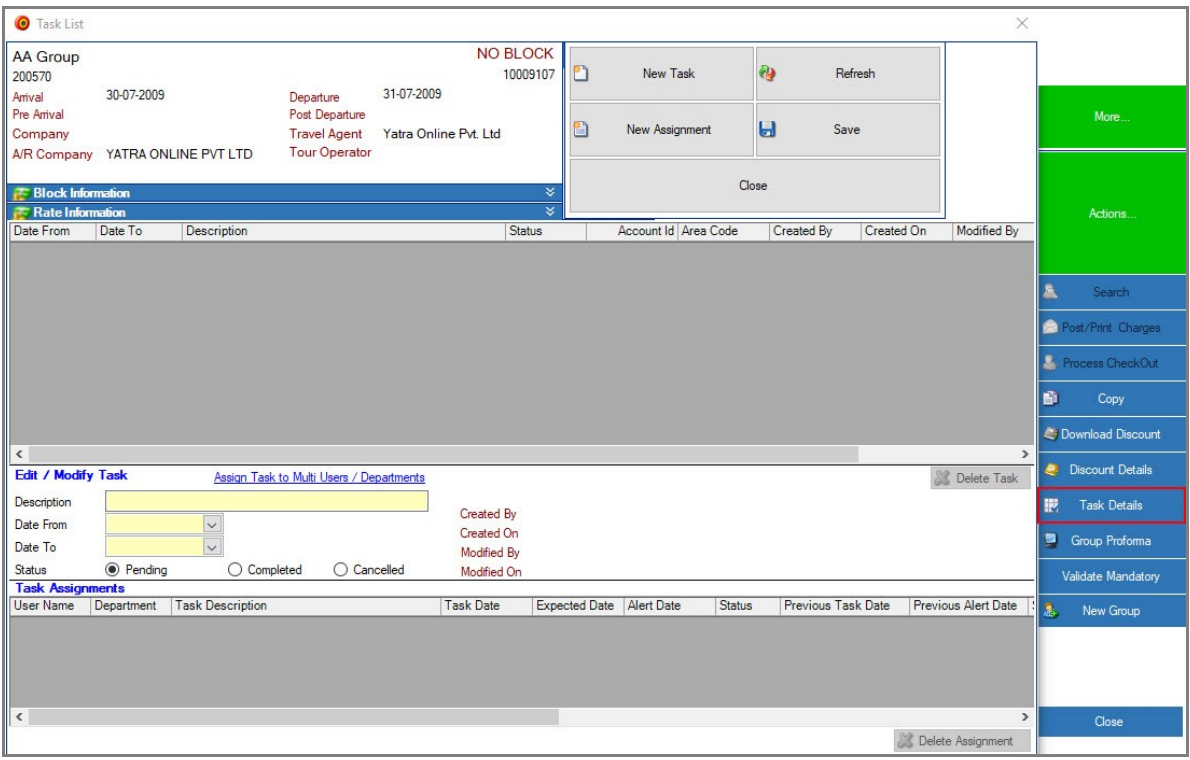
Task Details:
Tasks are like traces- option to record tasks related to guest/ groups. Tasks can be assigned to single or multiple users/ departments.