![logo.png]](https://kb.prologicfirst.online/hs-fs/hubfs/Imported%20sitepage%20images/logo.png?height=40&name=logo.png)
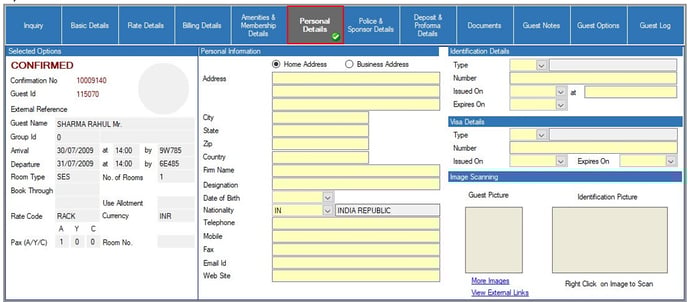
Click on the button – Personal Details on the top bar.
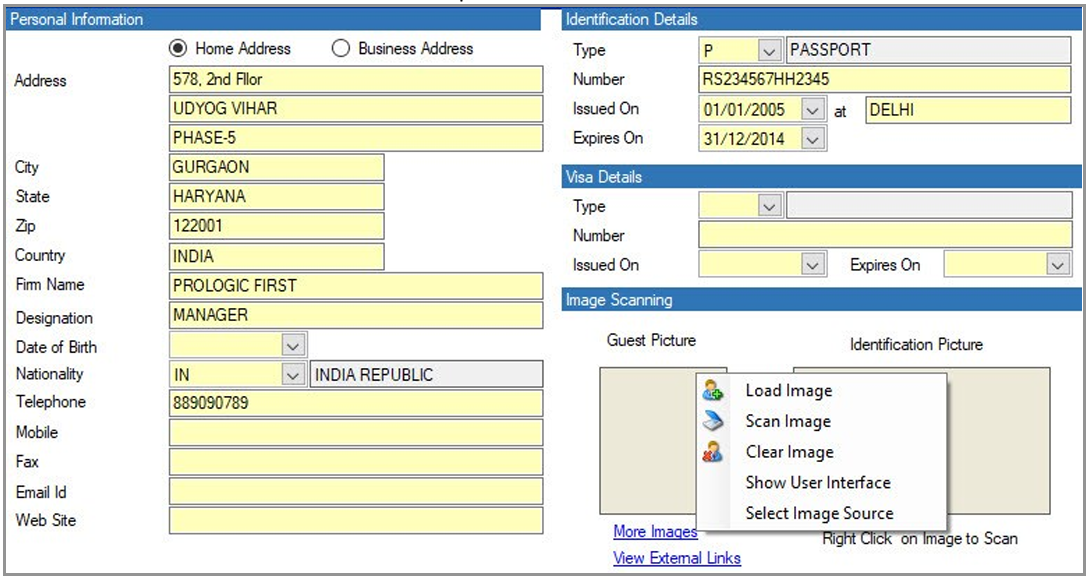
This screen allows you to record the following details:
-
Guest’s Home or Business Address
-
Firm Name: This should match the firm name provided in the guest details section.
-
Designation
-
Date of Birth
-
Language: You can set up languages using the "Language Details" link on this screen.
-
Nationality
-
Contact Information: Include telephone, mobile, fax number, email address, and website.
-
Guest Image Attachment: Right-clicking in the photograph section allows you to scan the image, load it from a network location, or clear the image.
-
Identification Details: Enter the following identification information:
- Type of Identification Document
- ID Number (e.g., passport number)
- ID Issue Date
- ID Expiry Date
- Place of Issue
- Visa Type
- Visa Number
- Visa Issue Date
- Visa Expiry Date
-
Identification Image Attachment: Right-clicking in the identification image section provides options to scan the ID, load it from a network location, or clear the image.
Note: WISHNET has interface with IDScanner and 3M scanner. If Identification document is scanned using these scanners ID details and Guest Image get auto picked up.
-
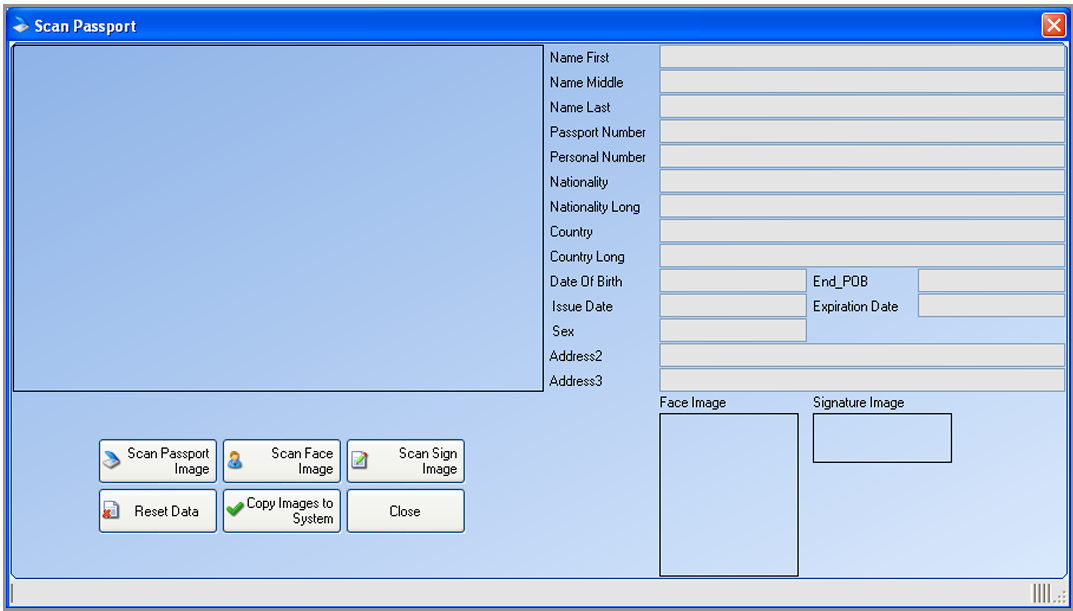
Scan Passport Image: Clicking this option will display the guest's passport image on the left side. Text data captured from the passport will appear on the right, based on the fields selected in the IDSCAN.CFG file.
-
Scan Face Image: This option will display the guest’s image in the Face Image section.
-
Scan Signature Image: Clicking this will show the guest's signature image from the passport in the Signature Image section.
-
Reset Data: This button clears all data from the screen.
-
Copy Images to System: Clicking this option will transfer the scanned images to their respective fields in the Guest Details Form.