![logo.png]](https://kb.prologicfirst.online/hs-fs/hubfs/Imported%20sitepage%20images/logo.png?height=40&name=logo.png)
Amenities & Membership Details
If the hotel has a membership program, you can define the membership cards in the setup and link them to guest reservations directly from this screen.
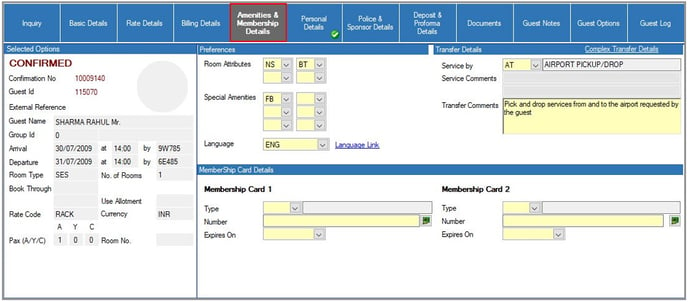
- Preferences: This section allows you to specify additional room preferences and special amenities as requested by the guest. These preferences include:
- Room Attributes
- Special Amenities
- Transfer Details: You can specify pick-up and drop-off services for the guest in this section
- Membership Card Details: Here, you can enter specific information related to memberships, including:
- Membership Card Type
- Membership Card Number
- Membership Card Expiry Date
- Membership Card Issue Date
Police & Sponsor Details
Police details are specified in this section. This is used for Foreign Nationals.
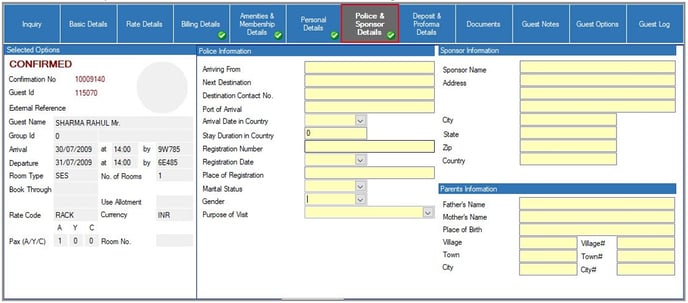
- Arriving From
- Next destination, Destination contact number
- Port of Arrival in country, Arrival date in country
- If guest carries work permit then- Registration number, Registration date, Place of registration
- Marital Status, Gender
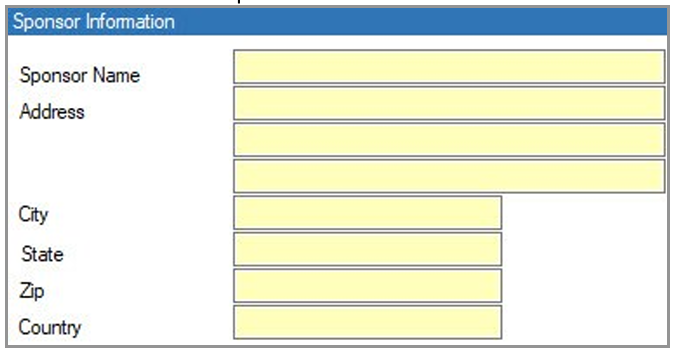
- Sponsor Information: This is for Guest’s Sponsor.
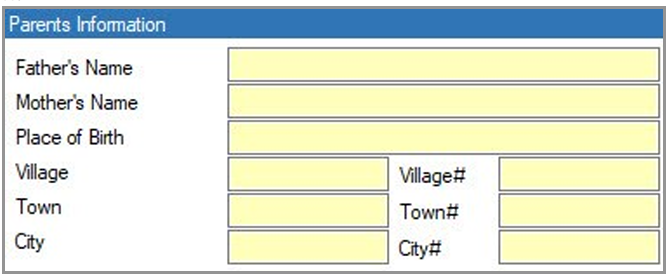
- Parents Information:
Allotment Details (Quick Key Ctrl+L)
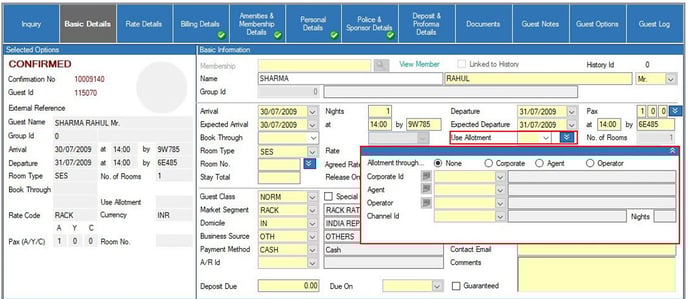
If multiple intermediaries are associated with the current reservation (such as a Tour Operator and a Travel Agent), you can select them by clicking on “Allotment Details” and choosing the relevant intermediaries.
The selection of contract rates follows a specific priority order: Corporate rates take precedence, followed by Travel Agent rates, and finally Tour Operator rates. This means that if both an Agent and an Operator are selected for a reservation, the system will automatically apply the Travel Agent’s contracted rate. Users can, however, override this by selecting a different Rate Code.
It's essential to specify the allotment block from which to check availability; if the chosen allotment block is fully booked, the system will automatically search the general pool for available rooms.
The terms and cancellation policy for this reservation will default to that of the intermediary with the highest priority (Corporate first, then Agent, and finally Operator). In the case of a cancellation and subsequent refund, the default refund amount can be manually adjusted as needed.
Additionally, Booker IDs created in the Travel Agent or Corporate master can be linked to the reservation through this option.
PAX Details (Quick Key Ctrl+P)
Adding accompanying guests to a reservation is a straightforward way to include additional guests without requiring a separate bill. This option is ideal when the accompanying guest will not be paying for their stay independently.
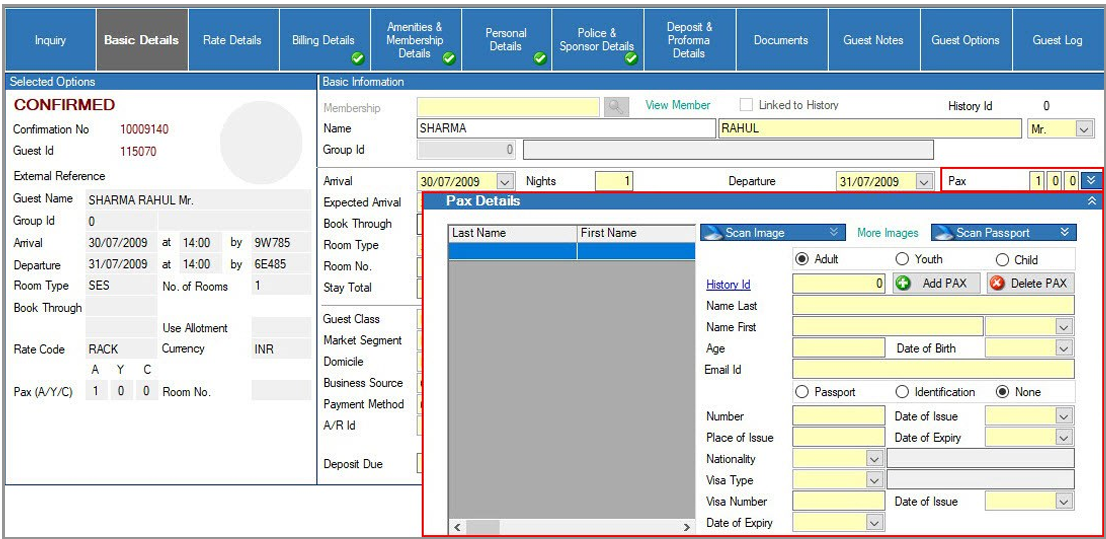
To add accompanying guests to the reservation, follow these steps:
- Click on the Pax Details option in the Guest Details section.
- Add a new row by clicking "Add" or pressing Alt + A on your keyboard, then fill in the guest details.
- You can attach a guest image and identification image by clicking on the Scan Image and Scan Passport tabs in the Pax Details screen, then scanning or uploading the images.
- Click on Save Modification or press Alt + M to save your changes.
- Click OK to complete the process.