![logo.png]](https://kb.prologicfirst.online/hs-fs/hubfs/Imported%20sitepage%20images/logo.png?height=40&name=logo.png)
Touche follows a template based access level management, where different templates can be given different access permissions, and one template can be assigned to a user. This access level includes, functions in the POS, reporting, Night Audit, Interfacing and further on.
Prerequisites:
-
WebTouche Link
-
Administrative Configurations Login
- Configurations Access to Templates Master and Function Template Link
- Name of the template whose access permissions are to be changed, this can be identified based on the user under User Master.
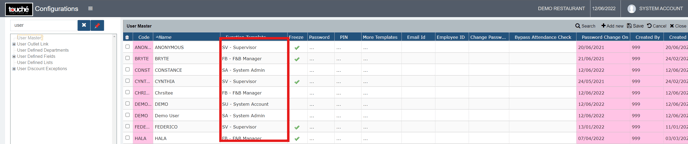
Creation of New Templates:
This can be done 2 ways:
- Creating a blank template:
1. Go to Templates Master and select Add New.
2. Enter code and name for the new template and select Save
3. You will now be access to access and edit the template, as blank. - Copying an existing template:
1. Go to Function Template Link and select an existing template to copy in the right.
2. Select Copy Template, and input the code and name for the new template.
3. You will now be able to access and edit the new template, built as a copy of the old.
Modifying the templates and their permissions:
To make template permissions changes for those properties hosted in cloud, kindly contact our support.
The Function Template Link screen shows all functions of the system in the left, and the template's available functions in the right. Below are the primary ones
Cashiering Screens (1-5): All Basic POS and Android functions
Android Touche: Complex Android functions
Parameter Setup: Functions in Configurations/Touche Masters
Locking: Lock Enquiry Functions
Night Audit: Night Audit Functions
Reports (Master, Daily, MIS, etc): All reports access
Utilities: Interfacing utilities access.
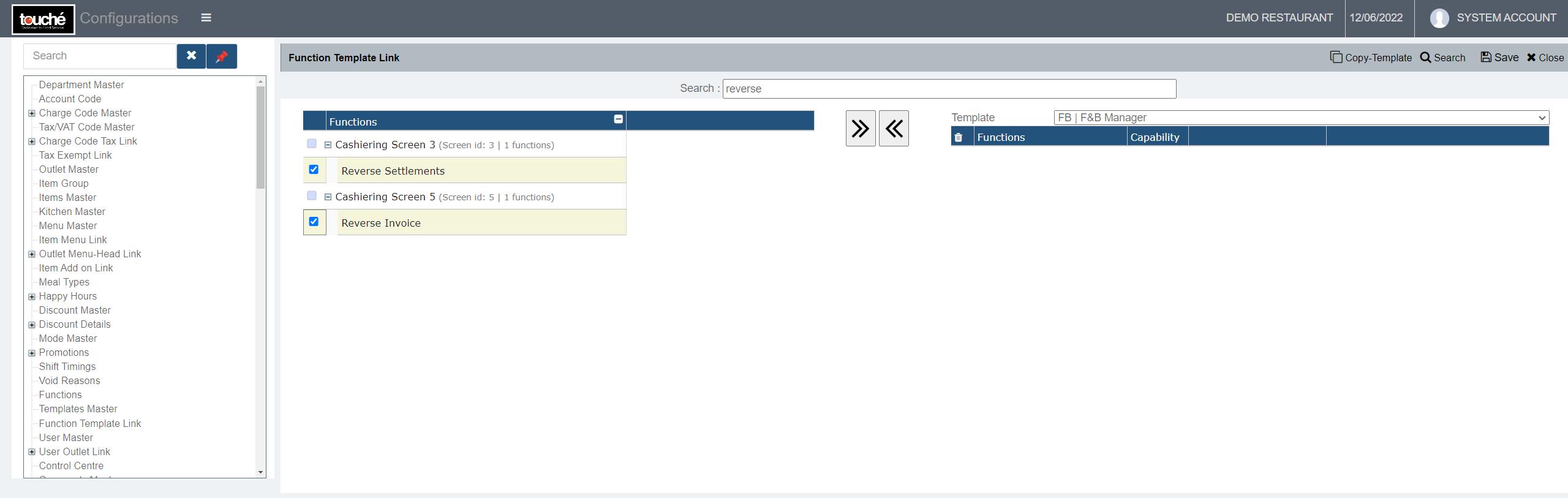
To add a function permission:
1. Select the Template from right
2. In the Search box above, search the function using a basic word of parameter.
3. If you identify matching results, expand the functions and tick the boxes in the right of those results and click the right arrow. If you do not see any results otherwise, it is because the search word is incorrect.
4. Select Save and verify.
To remove a function permission:
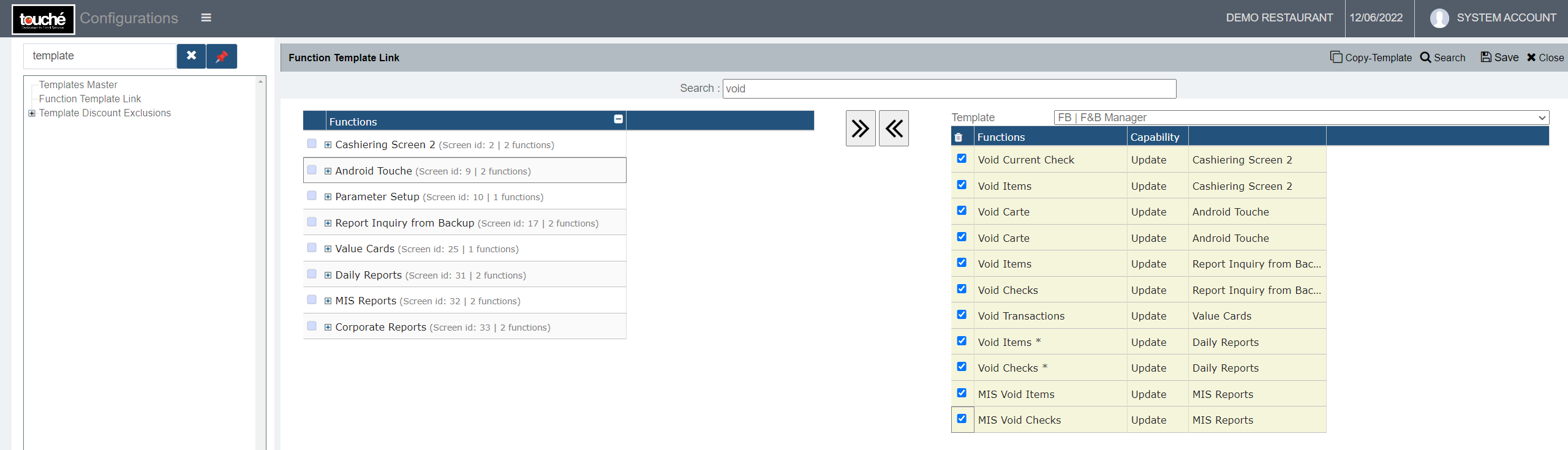
1. Select the Template from right
2. In the Search box above, search the function using a basic word of parameter.
3. If you identify matching results, tick the boxes in the left of those results. If you do not see any results otherwise, it is because either the user does not have access or the search word is incorrect.
4. Select Save and verify.
If you are using hybrid/CAP setup, please wait till next day morning for the menu to reflect in POS. To make it immediate, run the MasterSync in server or contact POS support line