![logo.png]](https://kb.prologicfirst.online/hs-fs/hubfs/Imported%20sitepage%20images/logo.png?height=40&name=logo.png)
For any exceptional and urgent cases, please contact:
Email: mea-support@prologicfirst.ae
Office Hours Support Direct No: +971 4 336 6345 (Monday to Friday 9:00 AM – 6:00 PM)
POS Support Hotline 24/7: +971 50 400 8832 (Point Of Sale)
1. Startup Errors
1.1 SQL Error 1
Issue: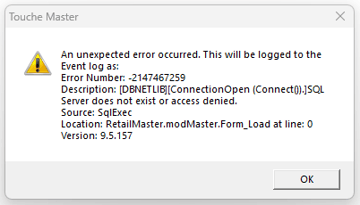
Diagnosis:
The client application is not able to communicate with the SQL Server Service.
| Possible Reason | Troubleshooting |
| The on premise server PC is turned off |
Please check if the on premise server machine onsite is turned on and functional. |
| The SQL Service in the on premise server is not running |
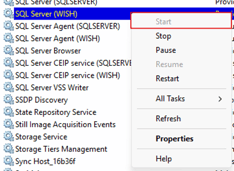
In server machine, go to Control Panel->Services and start the SQL Server service if not running.
|
| The client machine is pointed incorrectly |
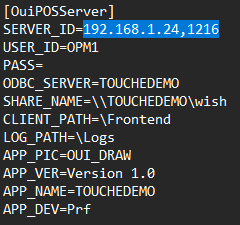
Go to the Frontend folder in the POS (Open File Location on application shortcut), open system folder and open INI.OUI in notepad. Identify the section [OuiPOSServer] as below, where the SERVER_ID should be the same as in server.
|
| The client machine is not connected to the network | Please check if the network cable is connected correctly to the POS, and the connectivity status is good. |
| The Firewall in the server is restricting the access |
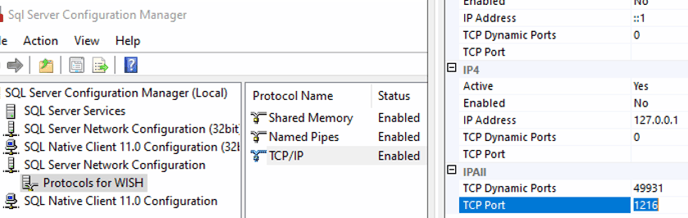
Please ensure the port of the SQL Server Service is exempted for Inbound and Outbound access in Advanced Firewall Settings. The port can be found from SQL Server Configuration Manager as below:
|
| The IP address of the server has changed |
Please revert to the old IP, otherwise contact our support lines, found above |
1.2 SQL Error 2
Issue:
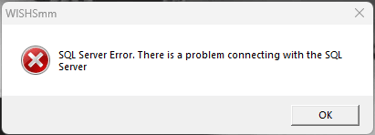
Diagnosis:
Application files are not syncing between client and server.
| Possible Reason | Troubleshooting |
|
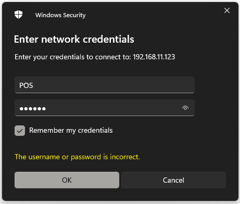
The share-path of the server is inaccessible in the client machine. The password of the server was changed. |
Please access the share-path of the server via IP and ensure Remember my credentials is ticked.
|
| The on premise server PC is turned off | Please check if the on premise server machine onsite is turned on and functional. |
| The client machine is not connected to the network | Please check if the network cable is connected correctly to the POS, and the connectivity status is good. |
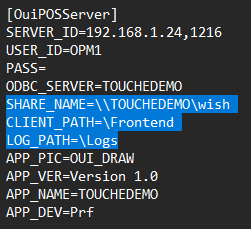
| The client machine is pointed incorrectly |
Go to the Frontend folder in the POS (Open File Location on application shortcut), open system folder and open INI.OUI in notepad. Identify the section [OuiPOSServer] as below, where the SHARE_NAME, CLIENT_PATH and LOG_PATH should be correctly set as per sharepath.
|
| The IP address of the server has changed |
Please revert to the old IP, otherwise contact our support lines, found above |
1.3 Version Error 1
Issue:
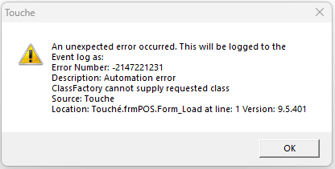
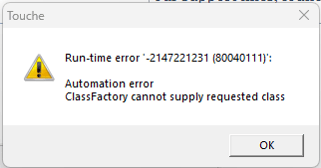
Diagnosis:
.NET files for the application are incorrect
| Possible Reason | Troubleshooting |
|
Registration was corrupted |
Re-register the files inside dll folder and net folder. (Follow after Step 10 here: https://kb.prologicfirst.online/articles/how-to-install-touche) |
|
Files are incorrect in the client machine |
Replace the Frontend folder from a working client machine or the server, and re-register the files inside dll folder and net folder. (Follow after Step 10 here: https://kb.prologicfirst.online/articles/how-to-install-touche) |
|
Application was not installed before |
Re-install the application (Follow steps here: https://kb.prologicfirst.online/articles/how-to-install-touche) |
1.4 Version Error 2
Issue:
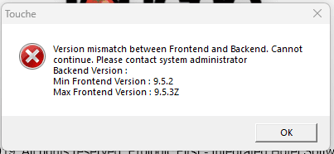
Diagnosis:
Frontend does not match the site version.
| Possible Reason | Troubleshooting |
|
Files are incorrect in the client machine |
Replace the Frontend folder from a working client machine or the server, and re-register the files inside dll folder and net folder. (Follow after Step 10 here: https://kb.prologicfirst.online/articles/how-to-install-touche) |
1.5 License Error
Issue: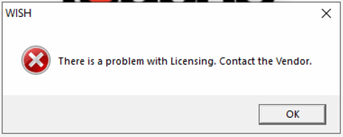
Diagnosis:
Valid License File is not found.
| Possible Reason | Troubleshooting |
| Server Share-path for License is not accessible |
Please access the share-path of the server via IP and ensure Remember my credentials is ticked.
|
|
Server path for License is not correct or was changed |
Please correct the path under Advanced Control->LICXML in Touche Masters/Configurations
|
| Client local path for License is not accessible (Special cases only) |
Go to the Frontend folder in the POS (Open File Location on application shortcut), open system folder and open INI.OUI in notepad. Identify the section [LICENSEFILEPATH] as below, where the FilePath should be correctly set as the local path to the License File.
|


1.6 Type Mismatch Error:
Issue: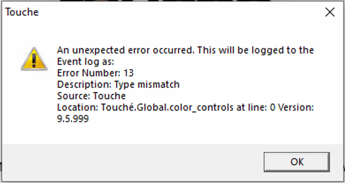
Diagnosis:
Application is unable to render the views and buttons completely.
| Possible Reason | Troubleshooting |
| Frontend files are not complete or up to date in the client machine. |
Replace the Frontend folder from a working client machine or the server, and re-register the files inside dll folder and net folder. (Follow after Step 10 here: https://kb.prologicfirst.online/articles/how-to-install-touche) |
| POS Settings were changed or not as per standard. | Revert any changes done, which include visual settings, date, current, time, region or so. |
| .NET present in the client machine was corrupted | Kindly attempt a reinstallation of Microsoft .NET Framework, otherwise reset the POS machine. |
2. Operational Errors
2.1 Item Punching Error 1
Issue:
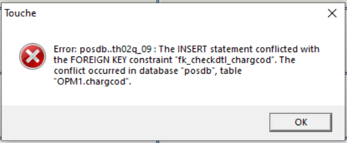
Diagnosis:
Issue with Charge Code linking with Outlet Department.
| Possible Reason | Troubleshooting |
| The Account Code of the item is not linked to the Department |
Under Charge Code Master in Touche Masters/Configurations, link the item's Account Code to the Department of the outlet. (Refer to Charge Code section here: https://kb.prologicfirst.online/articles/pos-structure-revenue-charges) |
3. WISH.NET Relative Errors
3.1 Profile Image Directory Error
Issue:
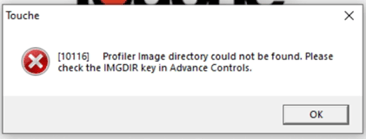
Diagnosis:
Profile Image Directory
| Possible Reason | Troubleshooting |
|
The share-path of the server is inaccessible in the client machine. The password of the server was changed. |
Please access the share-path of the server via IP and ensure Remember my credentials is ticked.
|
|
The path for Profile Image Directory was changed |
Please correct the path under Advanced Control->IMGDIR in Touche Masters/Configurations |