![logo.png]](https://kb.prologicfirst.online/hs-fs/hubfs/Imported%20sitepage%20images/logo.png?height=40&name=logo.png)
Prerequisites:
-
WebTouche Link
-
Administrative Configurations Login
- Configurations Access to Department Master, Account Codes, Charge Codes Master, Tax/VAT Code Master and Charge Code/Tax Link
-
Item Details
-
Menu Details
The Touche POS Revenue setup follows the below structure:
Departments
Departments serve as a main revenue head for outlets/revenue centres, managed under Department Master. These are linked to outlets/revenue centres under Outlet Master
- Creation is done by clicking Add New, entering name and clicking Save

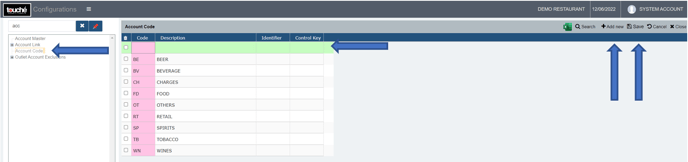
Account Code
Account Codes serve as the main revenue head for items, managed under Account Code. These are also those under which Item revenue is linked under Items Master and Discounts are linked to in Discount Details.
- Creation is done by clicking Add New, entering name and clicking Save
Charge Code
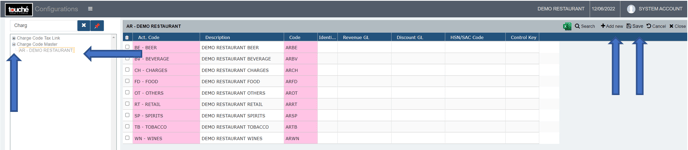
Charge Codes are the linked revenue heads under which the department's and account's revenue is tracked. It also allows the POS to work with the items of a particular account with the outlet of a particular department. They are created by linking Account Codes and Department Master, which is done in Charge Code Master. Linking here is important:
-
- To ensure the outlets under the department will be able to settle a bill with items under a particular account code.
- To set taxes for each separately.
- Linking is done by clicking the + sign, selecting the Department, clicking Add New, selecting the Account Code and clicking Save.
Charges (Taxes/VAT)
Charges can be calculated under 2 setup modes, which is done during implementation.
- Inclusive Setup (VAT): Taxes/VAT are calculated in reverse.
Given that all the prices configured in the system is the Net Amount
ie Inclusive of all Taxes and VAT
- Exclusive Setup (TAX): Taxes/VAT are calculated ahead
Given that all the prices configured in the system is the Gross Amount
ie Exclusive of all Taxes and VAT
Change of setup from one to another is not recommended especially during mid operation, however if required should be consulted with our support, for which we will advise accordingly.
- Creation of Taxes/VAT is done by going to TAX/VAT Code Master, where creation is done by clicking Add New, entering name, code, type and clicking Save

Type should be set correctly as explained in the above or as how the existing Taxes/VAT are. If not sure, please consult with our support
- To have them start calculating, the taxes should be linked to Charge codes by going to Charge Code Tax Link. Linking is done by clicking the + sign, selecting the Charge Code, clicking Add New, selecting the Tax/VAT, setting the start date, the Tax/VAT percentage and clicking Save.

For GL Transfer to WebProlific of Charge Codes and Taxes/VAT, refer here:
https://kb.prologicfirst.online/articles/pos-integrations-webprolific-argl
If you are using hybrid/CAP setup, please wait till next day morning for the menu to reflect in POS. To make it immediate, run the MasterSync in server or contact POS support line