![logo.png]](https://kb.prologicfirst.online/hs-fs/hubfs/Imported%20sitepage%20images/logo.png?height=40&name=logo.png)
Prerequisites:
-
SMTP credentials
- autofire and prnrep1
- Email IDs of recipients
- Names of those reports to be sent
- Access to night audit machine
- WISH Cryptography with sample XML
1. Setup of SMTP
1.1 In the code snippet below, replace the details in bold with the SMTP credentials provided and save it as an XML file.
<?xml version="1.0" standalone="yes"?>
<SMTP>
  <Default>
    <MAILSERVER>testing.server.com</MAILSERVER>
    <PORT>1234</PORT>
    <AUTHENTICATION>Y</AUTHENTICATION>
    <SENDEREMAIL>info@testcompany.com</SENDEREMAIL>
    <USERID>info@testcompany.com</USERID>
    <PASSWORD>TestPass</PASSWORD>
    <ENABLESSL>Y</ENABLESSL>
  </Default>
</SMTP>
1.2 Using WISHCryptography, encrypt the file and set the name of new file as SMPT.XML
Kindly contact our support to have this step done
1.3 Paste the file inside system folder, found in Touche's Frontend
2. Setup of emailing information
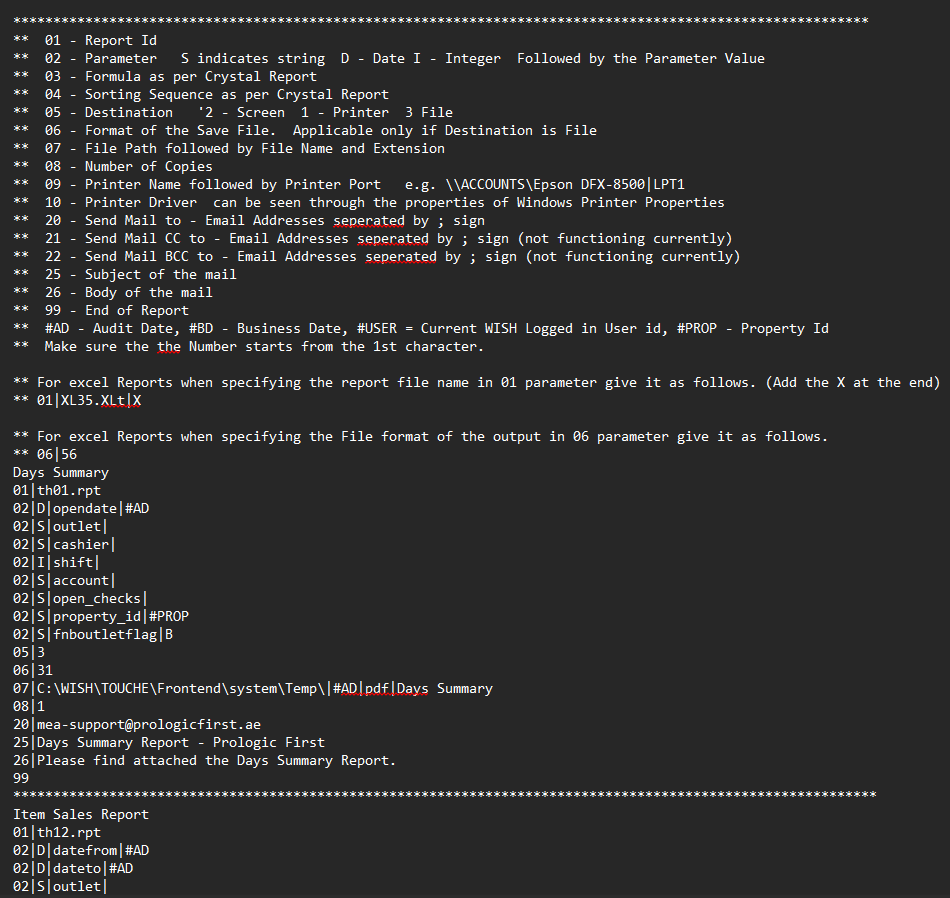
2.1 In Frontend->cli, open Sample_Autofire, where you will be shown a sample format for the mailing setup and the usage of the same. However, below data is important to ensure the functionality criteria's are met:
- 07: Setup the path to a Temp folder to generate the pdf files
- 20: Setup the recipient email IDs , separated by ';' (Can be edited anytime)
- 25: Setup the Email Subject
- 26: Setup the Email content
 2.2 Save the file and rename it to autofire
2.3 In Frontend, run Autofire.exe to test the functionality of the setup and verify that it is working.
2.4 Once done, make a copy of autofire and rename it to prnrep1
2.5 In ToucheMasters/Configurations, go to Night Audit Processes and unfreeze the process Print Reports
2.6 The reports will now be send automatically everyday on Night Audit