![logo.png]](https://kb.prologicfirst.online/hs-fs/hubfs/Imported%20sitepage%20images/logo.png?height=40&name=logo.png)
In Touche, Promotions can be created, where applicable Main Item once punched, prompts to select one other type of Promotion Item of particular quantity and price along with it.
Prerequisites:
-
WebTouche Link
-
Administrative Configurations Login
- Configurations Access to Categories, Promotion Groups and Promotions
-
Main Item and Promotion Item to be in the same menu.
To configure the same:
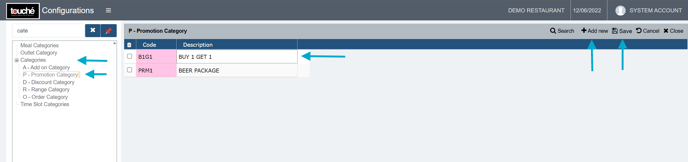
1. In Configurations, go to Categories->Promotion Category, select Add New, create the category name and select Save
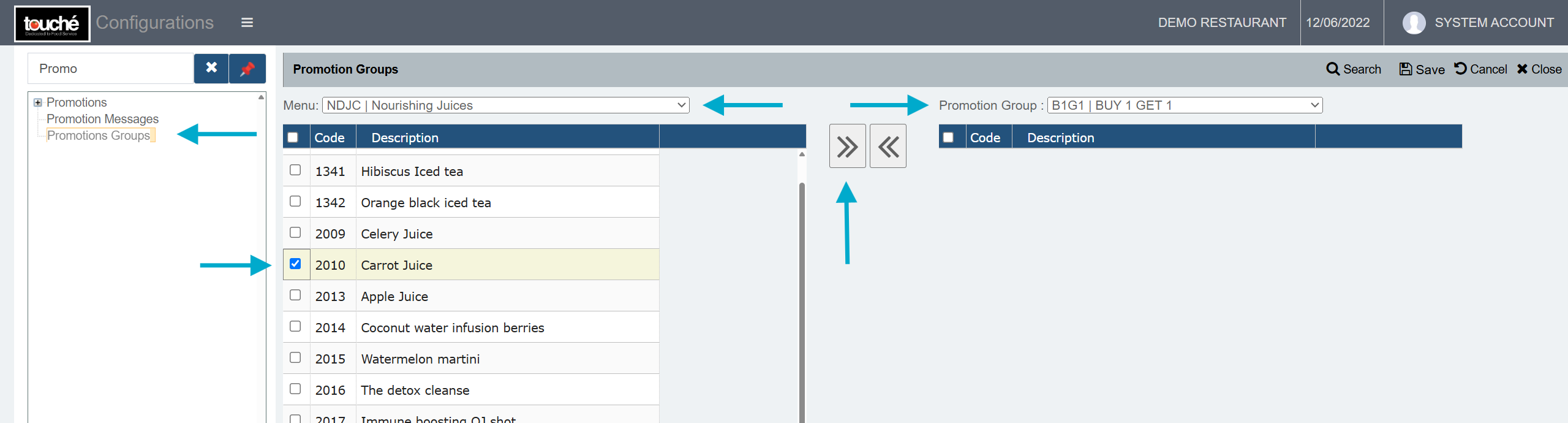
2. Go to Promotion Groups, select Menu in which the promotion item is present, select Promotion Group created earlier and tick the promotion item which needs to be part of the group.
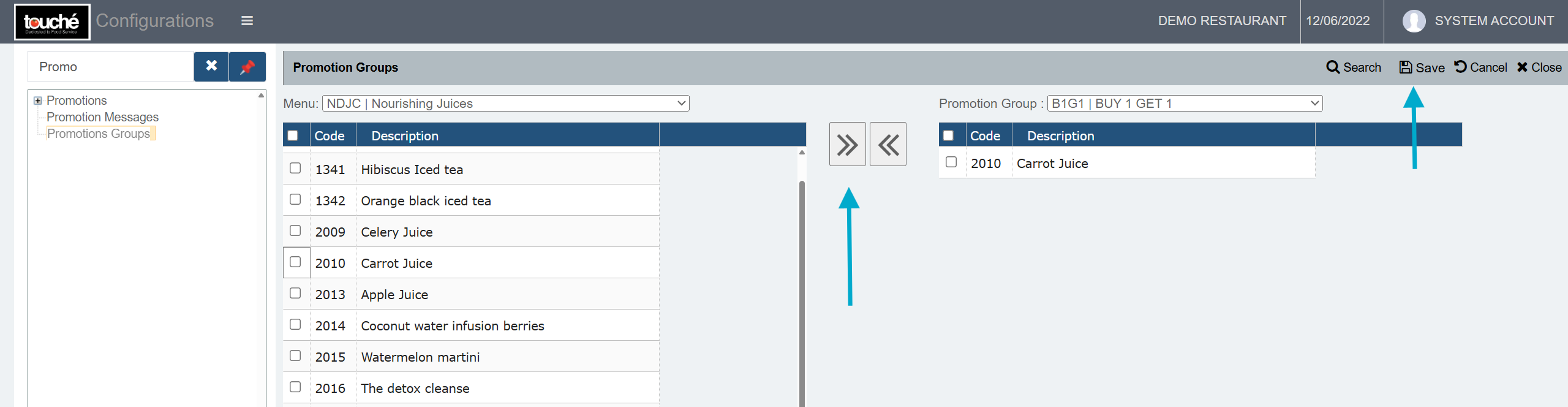
3. Once above is done, select the right move arrow and select Save
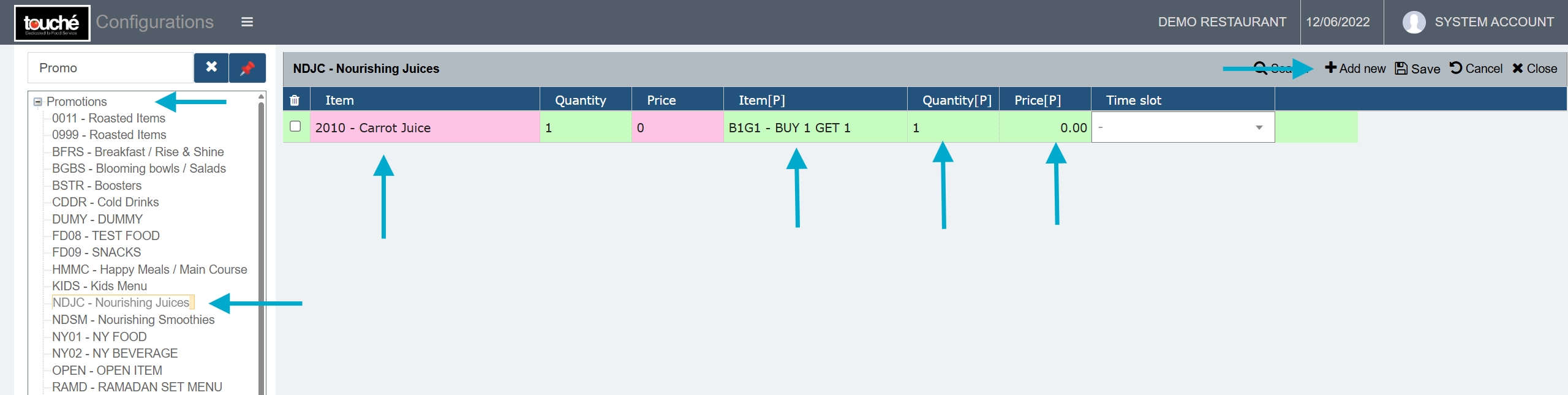
4. Go to Promotions and select the plus (+) in the left side, and select the menu in which both the Main Item and Promotion Item is present. Click Add New and select the Main Item and conditional quantity. Under Item[P], set the created promotion group to be linked, the Quantity[P] of Promotional Items to be part of it. The price and time can be set if applicable.
5. Once done, verify in POS, where the Promotional Item will automatically be added when the Main Item is added as per the conditions set.
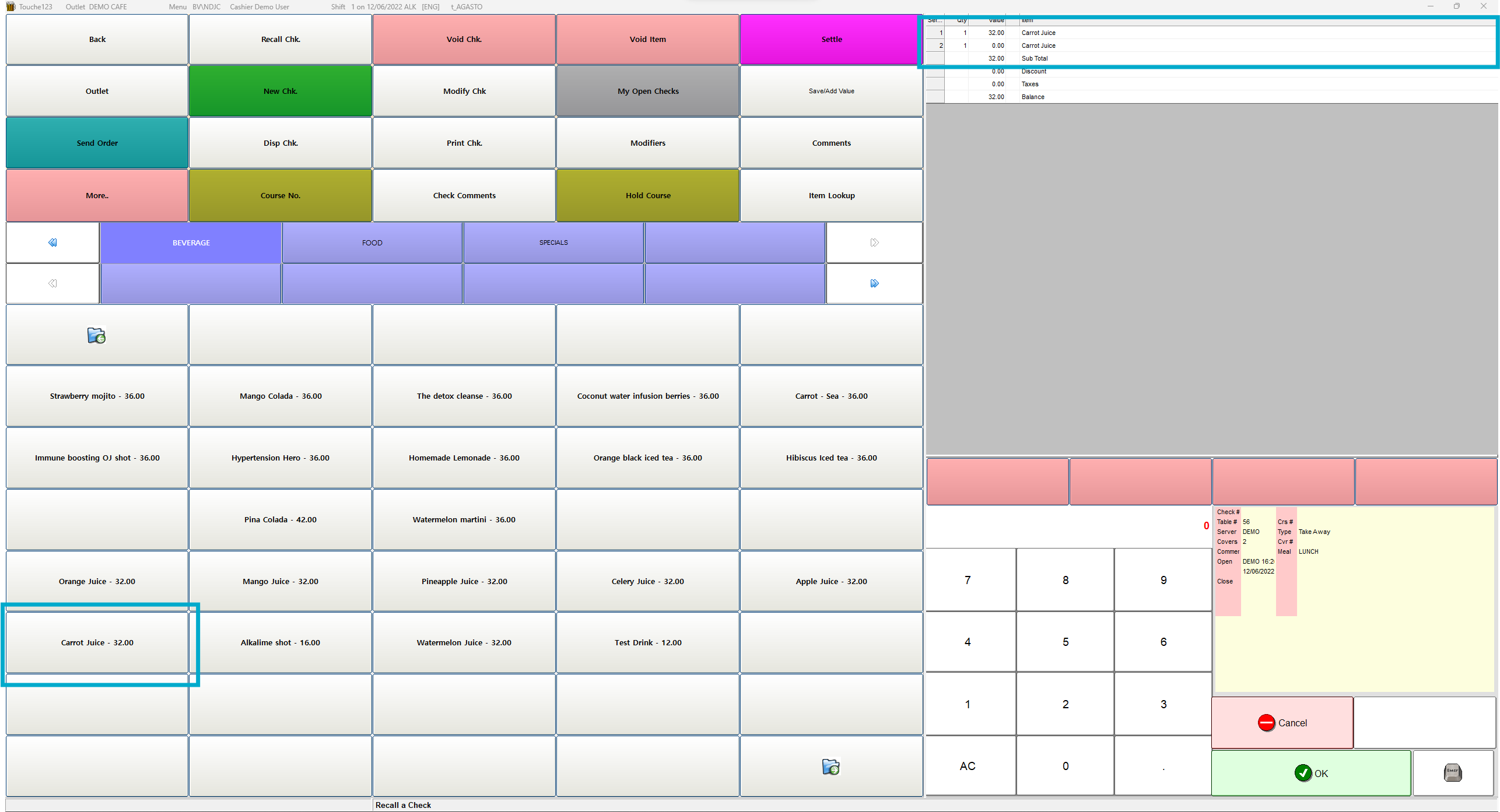
If more than 1 promotion items are linked to the main item, user will be given the option to select before being added to the order
If you are using hybrid/CAP setup, please wait till next day morning for the menu to reflect in POS. To make it immediate, run the MasterSync in server or contact POS support line