![logo.png]](https://kb.prologicfirst.online/hs-fs/hubfs/Imported%20sitepage%20images/logo.png?height=40&name=logo.png)
Prerequisites:
-
WebTouche Link
-
Administrative Configurations Login
- Configurations Access to Outlet Master, Outlet Menu-Head Link and User Outlet Link
-
Outlet Details
Understand further about the creation structure here:
https://kb.prologicfirst.online/articles/pos-structure-menu-item
To create an outlet/revenue center:
1. Go to Outlet Master, select Add New and enter the outlet details under Code and Name.
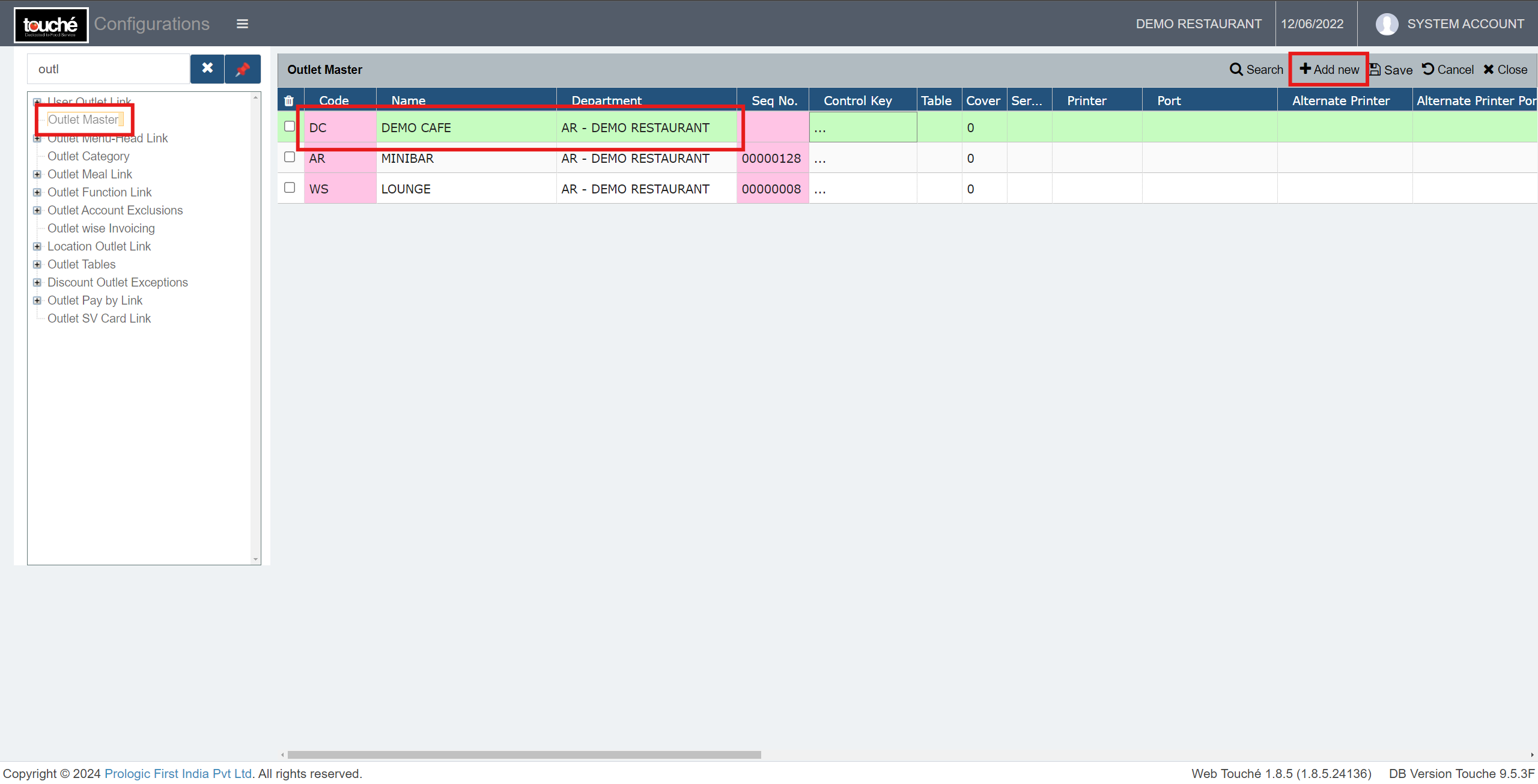
Department is the main head that constitutes the necessary charge codes as well as Tax/VAT setups .It can be given same as others if only a single Department Head setup is followed in the property. If multiple are used, kindly refer below link to have those created first:
- To have a default Table and Cover configured, you can enter the same in the Table and Cover columns.
- To increase the BILL printing count on normal printing and settlement printing, count can be assigned under Check Count and Print Check[S] respectively
An Order Type which is used for reporting can be assigned as default to the outlet if required under Default Order Type column, leaving it blank will prompt to ask the user to select the order type manually when opening a check under the outlet.
You can create/manage order type under Order Type master
2. Select box under Control Key, which will open the control options, they can be configured as below by default, click OK and Save once done.
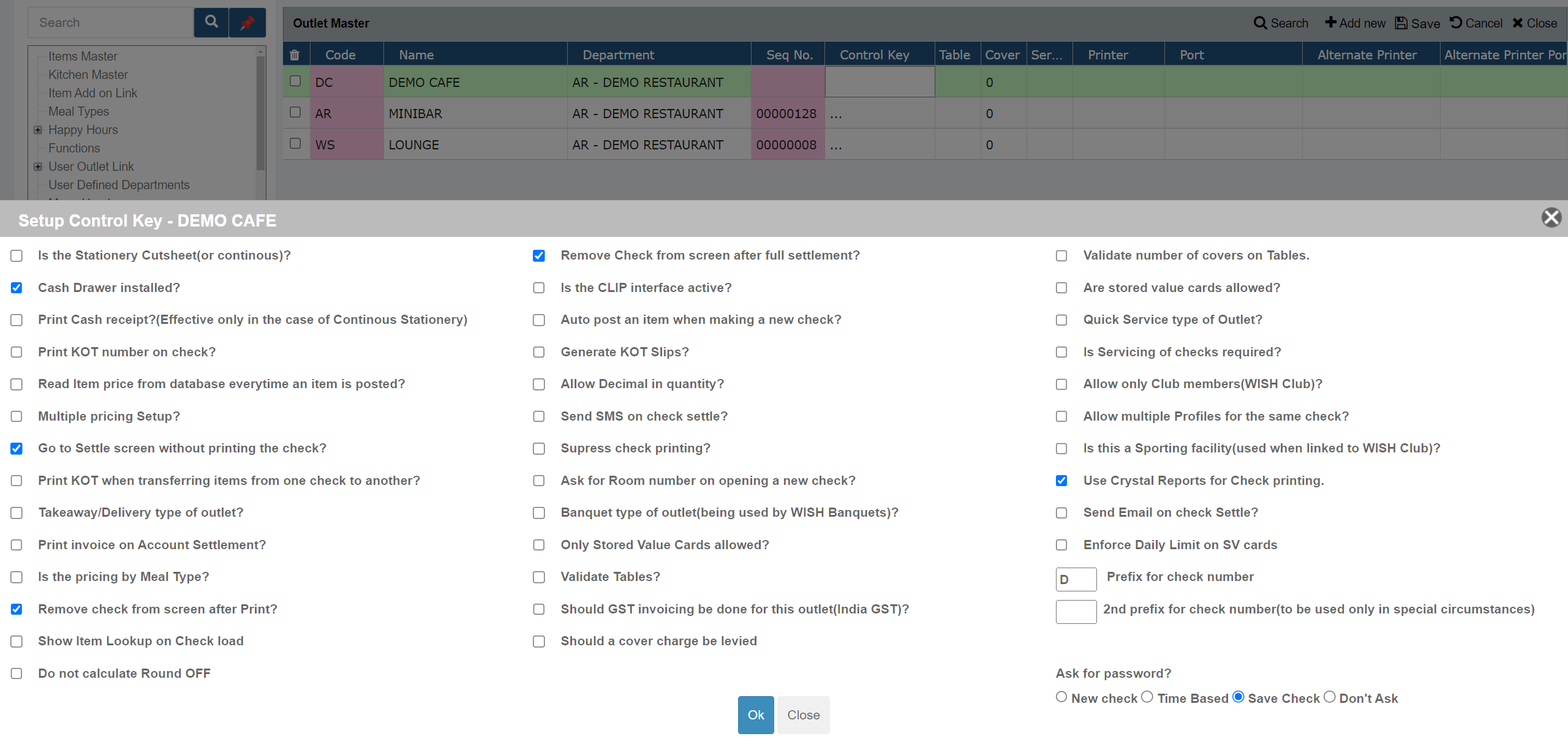
- Ticking the below will prompt Phone Number to be entered instead of Table
number for checks
- Ticking the below will skip entering table number and covers when opening a new check

- The below selections assisting with the auto logout/authentication, which works as the names suggest

- Prefix will be there prior to the check number, those in use cannot be given again. 2nd prefix can be left blank, only to be used in special circumstances.

3. Go To Outlet Menu-Head Link, click the + sign, select the outlet newly created and link the Menu Heads to the outlet by selecting Add New. Click Save once done.
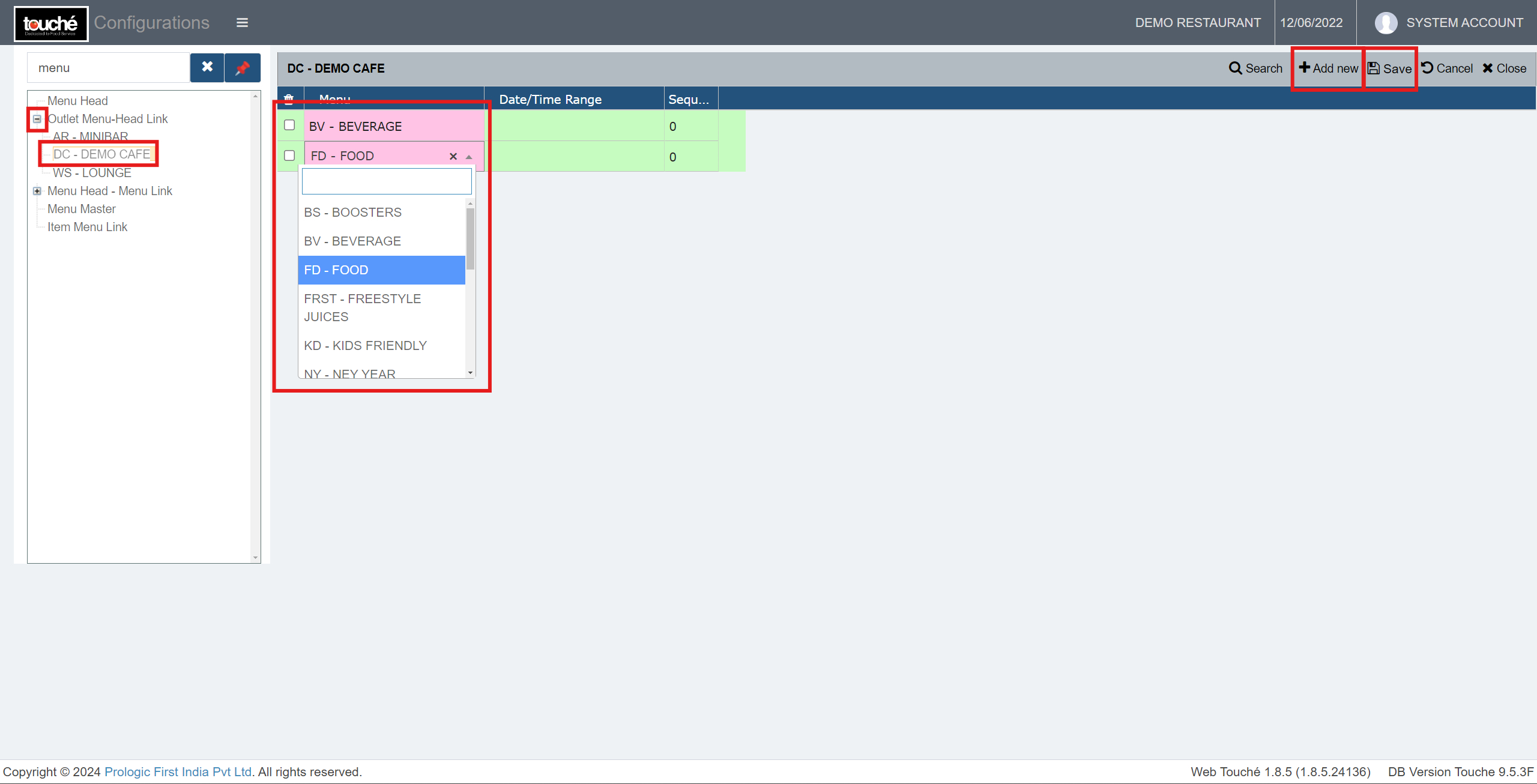
To create menu heads, refer here:
https://kb.prologicfirst.online/articles/create/pos-menuhead-create
4. Link the users to the outlets as required in User Outlet Link
Refer here: https://kb.prologicfirst.online/articles/pos-users-manage
5. Once done, verify on screen
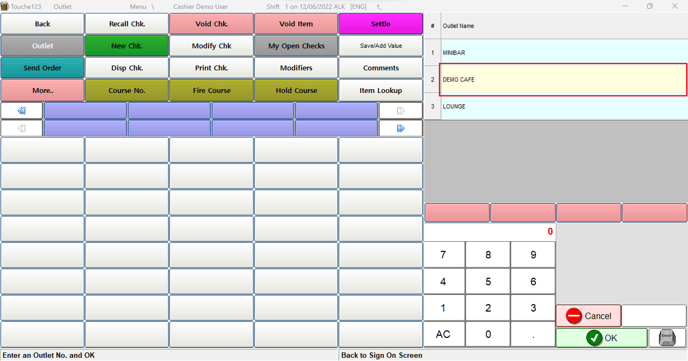
If you are using hybrid/CAP setup, please wait till next day morning for the menu to reflect in POS. To make it immediate, run the MasterSync in server or contact POS support line