![logo.png]](https://kb.prologicfirst.online/hs-fs/hubfs/Imported%20sitepage%20images/logo.png?height=40&name=logo.png)
Prerequisites:
-
WebTouche Link
-
Administrative Configurations Login
- Configurations Access to Items Master, Item Group and Item-Menu Link
-
Item Details
-
Menu Details
Understand further about the creation structure here:
https://kb.prologicfirst.online/articles/pos-structure-menu-item
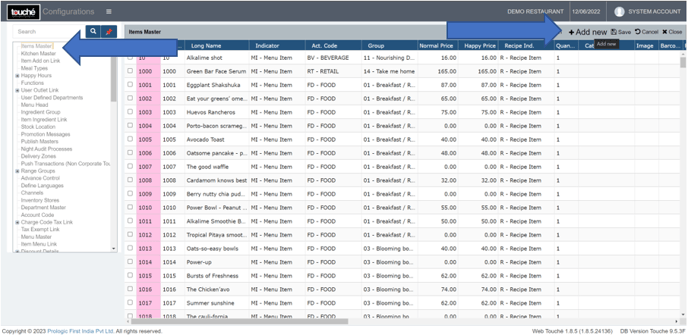
1. In Configurations go to Items Master, click on Add
2. Enter the item details as necessary, click on Save
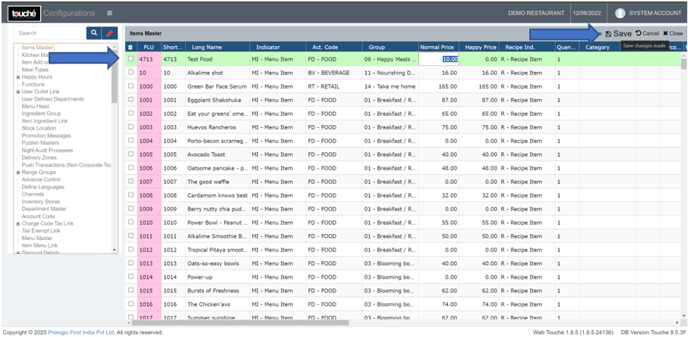
PLU should be a unique code. code sequences are followed at most setups to standardize between item type or outlet type. Scroll below to find the last code used, so the next number can be used for the new item.
Menu Item is the default option, otherwise if you want an open key select Open Item.
Act. Code is the Account Code to which the revenue goes to, to create new follow instructions in XII and XIII.
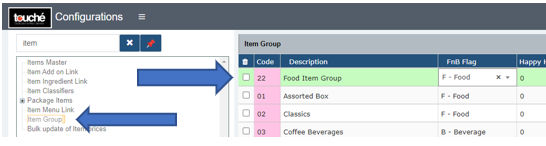
Group is the item category under which the item is segregated for Item Sales and Menu Engineering Reports. New group can be created by going to Item Group, click on Add New, entering details and clicking on Save. This has to be done first before the item is created in Items Master.
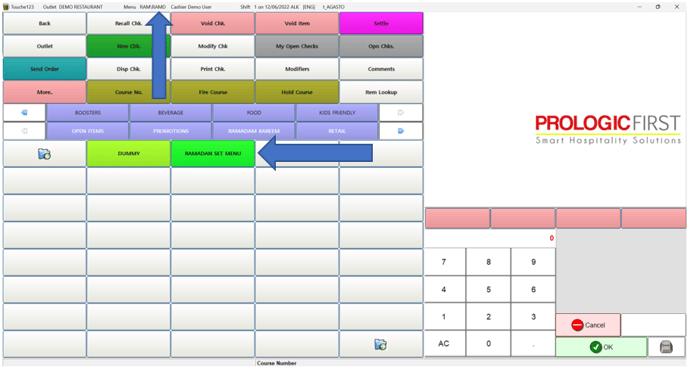
3. Go to Item Menu Link, under Menu select the menu where the item needs to be added to
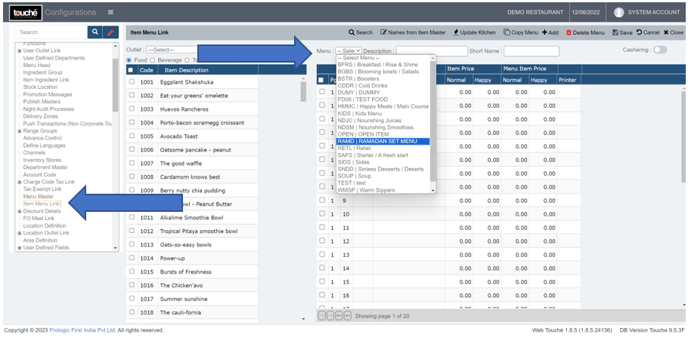
You can find the name of the menu in green color on the POS screen or refer the menu code in the top of the screen as shown below
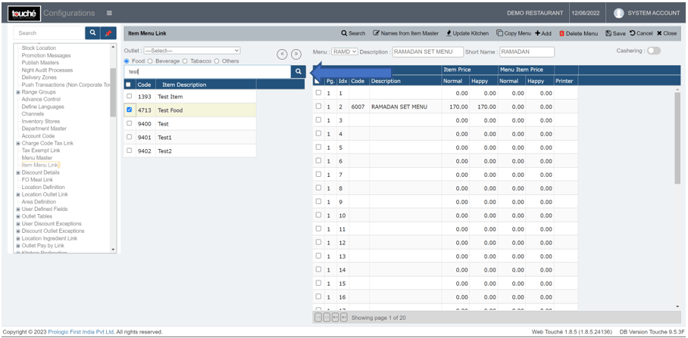
4. Once selected, select the item you created from the left side list. Use the search box for quicker selection
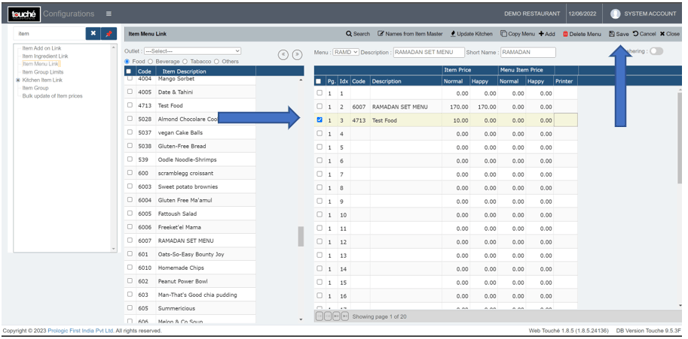
5. Drag and Drop to the designated empty box in the right, and click Save
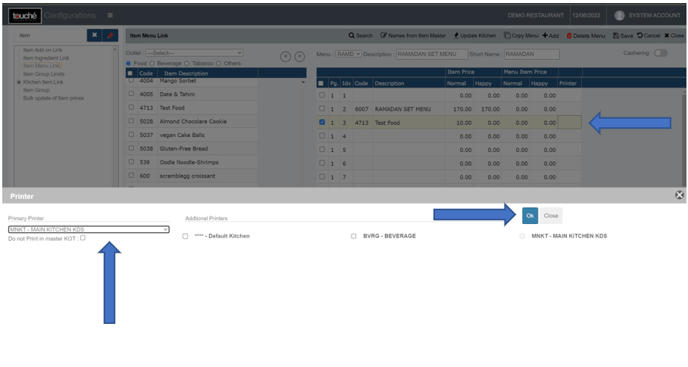
If a KOT printer is to be assigned, click on the printer box and select under primary printer. For more than one, select the secondary printer. Click OK after
To remove an item, Drag the item from the right to the left away from the menu and click Save
6. Click on Save, and verify on screen
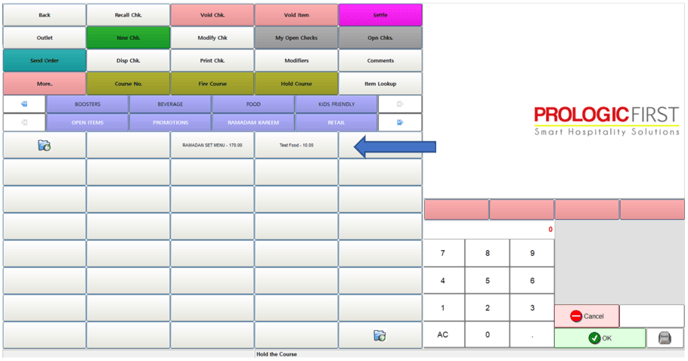
If you are using hybrid/CAP setup, please wait till next day morning for the menu to reflect in POS. To make it immediate, run the MasterSync in server or contact POS support line