![logo.png]](https://kb.prologicfirst.online/hs-fs/hubfs/Imported%20sitepage%20images/logo.png?height=40&name=logo.png)
Prerequisites:
-
WebTouche Link
-
Administrative Configurations Login
- Configurations Access to Items Master, Item Group, Item Addon Link and Categories
-
Addon on Item Details, with Menu Item linked to Menu
In the case of having selection options (Choice of Drinks, Food Sweet/Sour, Starters, etc), pop up options can be enabled to be selected when a Menu Item is clicked during punching. This will print below the item in the KOT to which the Menu Item is assigned to, there will be no separation of KOTs. For this, the below steps are to be followed:
- In Configurations, Find Categories and click on the ‘+’. Select Add on Category
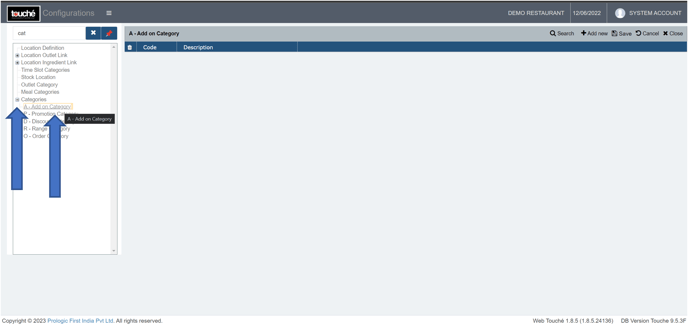
2. Here, click on Add New, create the pop up category and click on Save.
(Eg: Choice of Drinks, Food Flavour, Starters).
Note: The pop up items to come under the category will be created in the next steps, not here
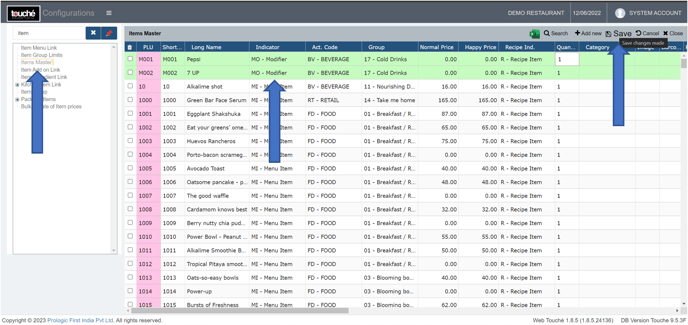
3. Go to Items Master, create the pop-up items same as how menu item is created (Follow steps in I) except for one, where you set it as Modifier or Condiment instead of Menu Item and click on Save
Modifier is for zero price pop ups, Condiment is for those with price, which will print on bill as well as be tracked of depletion incase of inventory integration with any BackOffice software
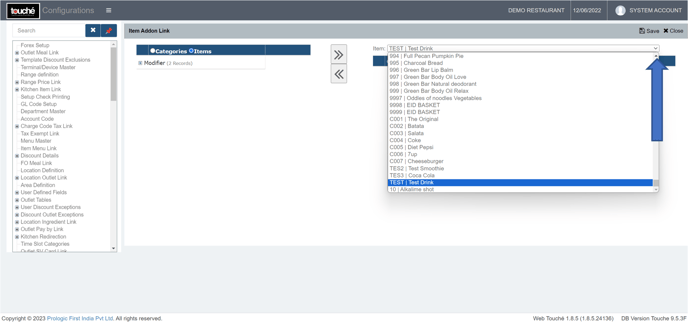
4. Go to Item Addon Link and select the item to which you want to add pop up
5. Go to Categories, click the + sign, tick the box next to the category you want to add and click on the right arrow
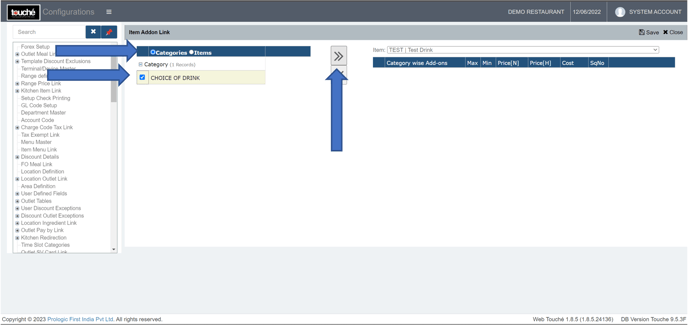
6. Now to add under the Category, go to Items, click the + sign, tick the box next to the items and under the category you want to add and click on the right arrow
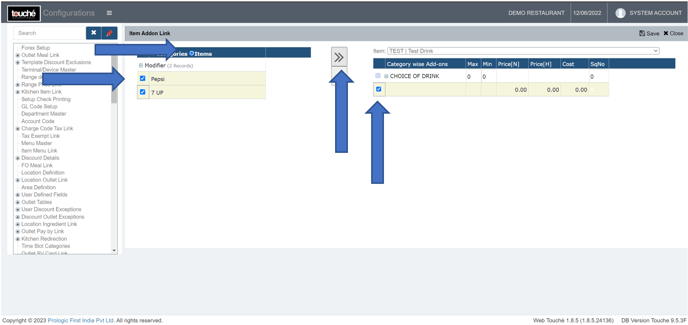
To remove the addon item or category, tick the boxes accordingly in the right side and select the left arrow.
7. Once you see the items are under the category as needed, set the maximum and minimum limit of selection allowed for that category or leave it as zero by default. Set the Sequence number for display preference if there are multiple categories.
Note: For Condiments, you can enter the price under Price [N] and Price[H]
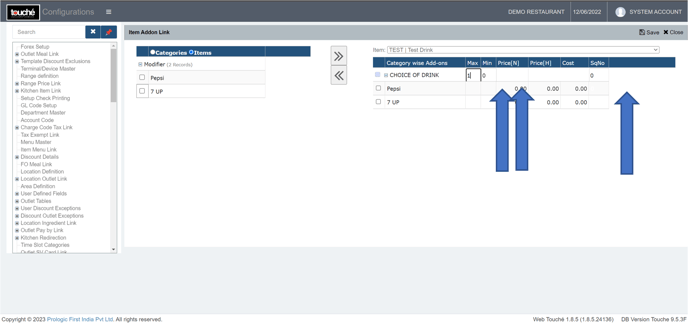
8. Click on ‘Save’ and verify on screen
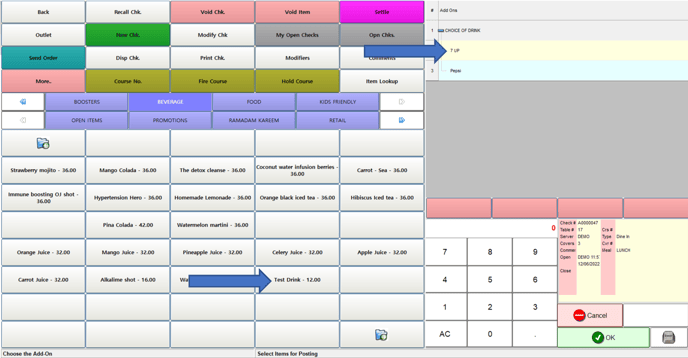
Note: If you are using hybrid/CAP setup, please wait till next day morning for the menu to reflect in POS. To make it immediate, run the MasterSync in server or contact POS support line
Additional Controls:
MUMOCO: When set to Y, it allows to select only 1 Addon when punching. Avoids confirmation after selection of addon for quicker punching.