![logo.png]](https://kb.prologicfirst.online/hs-fs/hubfs/Imported%20sitepage%20images/logo.png?height=40&name=logo.png)
Touche POS supports Happy Hour pricing setup, where from a particular date/time, the pricing of the items change to a lower/higher configured price, helping automate happy hour promotions at designated outlets.
Prerequisites:
-
WebTouche Link
-
Administrative Configurations Login
- Configurations Access to Items Master, Range Definition, Time Slots and Happy Hours
1. In Items Master, ensure the Happy Hour Prices are set in the Happy Price Column.
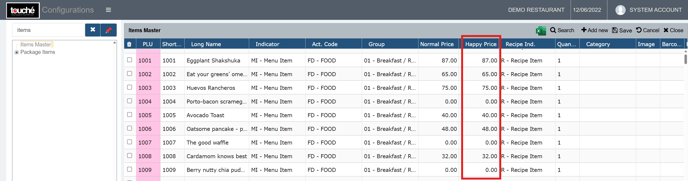
If the prices are maintained at menu level, kindly have the prices update in Item-Menu Link instead under the respective menu.
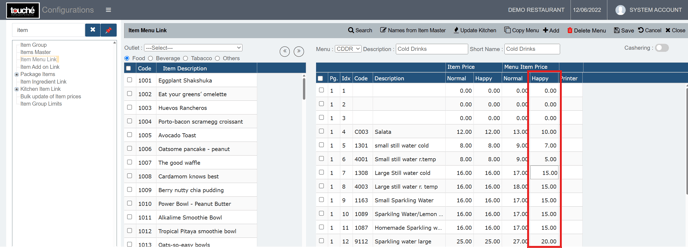
If the item is not part of Happy Hour Promotion, the normal selling price can be set in the Happy Price column
2. In Range Definition, create a time range to be linked with Happy Hour, the timings and date configured will be when the Happy Hour pricing is to be active.
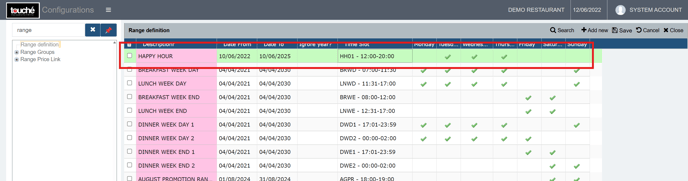
To create a Time Slot if not available, you can navigate to Time Slots in the left for the same.
Kindly refer to point 3 in below link for more details on Range Definition and Time Slots setup: https://kb.prologicfirst.online/articles/pos-date-time-range
3. Go to Happy Hours, select the + sign an select the required outlet where the Happy Hour is to be configured. Click on Add New and select the Range Definition created above and select Save. This will link the time range with the outlet.
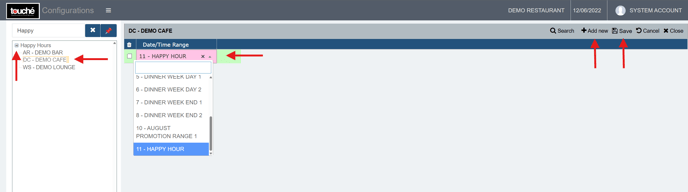
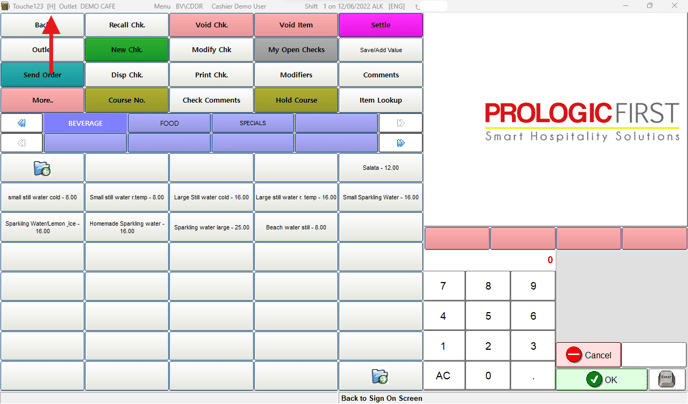
4. Verify in POS, where once the outlet is selected at Happy Hour configured time, [H] will be visible above as shown below.
If you are using hybrid/CAP setup, please wait till next day morning for the menu to reflect in POS. To make it immediate, run the MasterSync in server or contact POS support line