![logo.png]](https://kb.prologicfirst.online/hs-fs/hubfs/Imported%20sitepage%20images/logo.png?height=40&name=logo.png)
Prerequisites:
-
WebTouche Link
-
Administrative Configurations Login
- Configurations Access to Discount Master and Discount Details
-
Discount Details
There are various modes of discount application that can be used. To create and apply, the setup can be done as below.
1. Go to Discount Master, click on Add New, and create the discount then click Save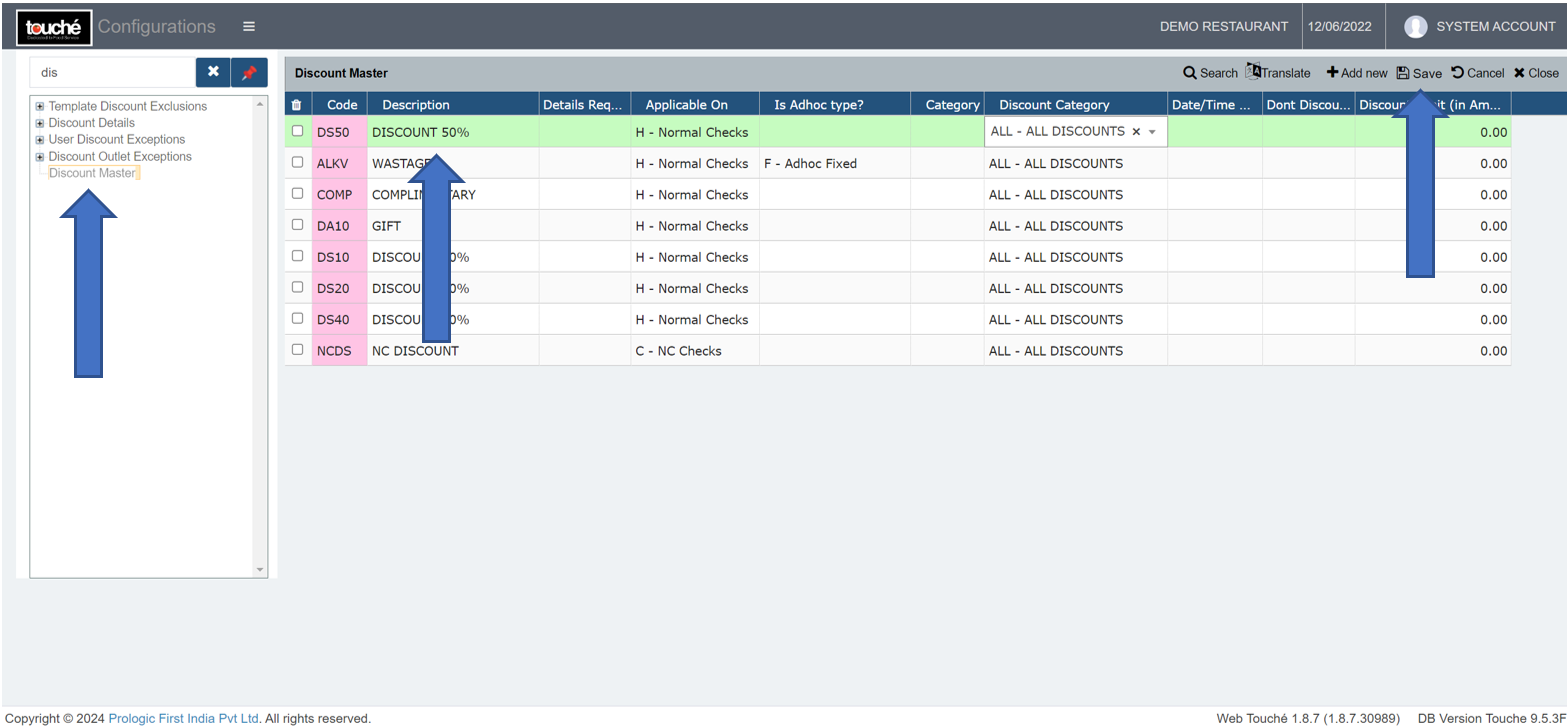
Note: Is Adhoc Type can given based on requirement as follows:
-If discount is to be assigned automatically as percentage/amount, leave the field empty
-If discount is to be given manually item based, set it as Item Wise Fixed/Percent
-If discount is to be given manually account code wise, set it as Adhoc Fixed/Percent
Discount Limit (in Amount) can be used to set a maximum cap on the discount being applied if automatic only
2. Go to Discount Details, click the + sign and select the discount created, click on Add New and add the Account Code(s) to which the discount should be applied.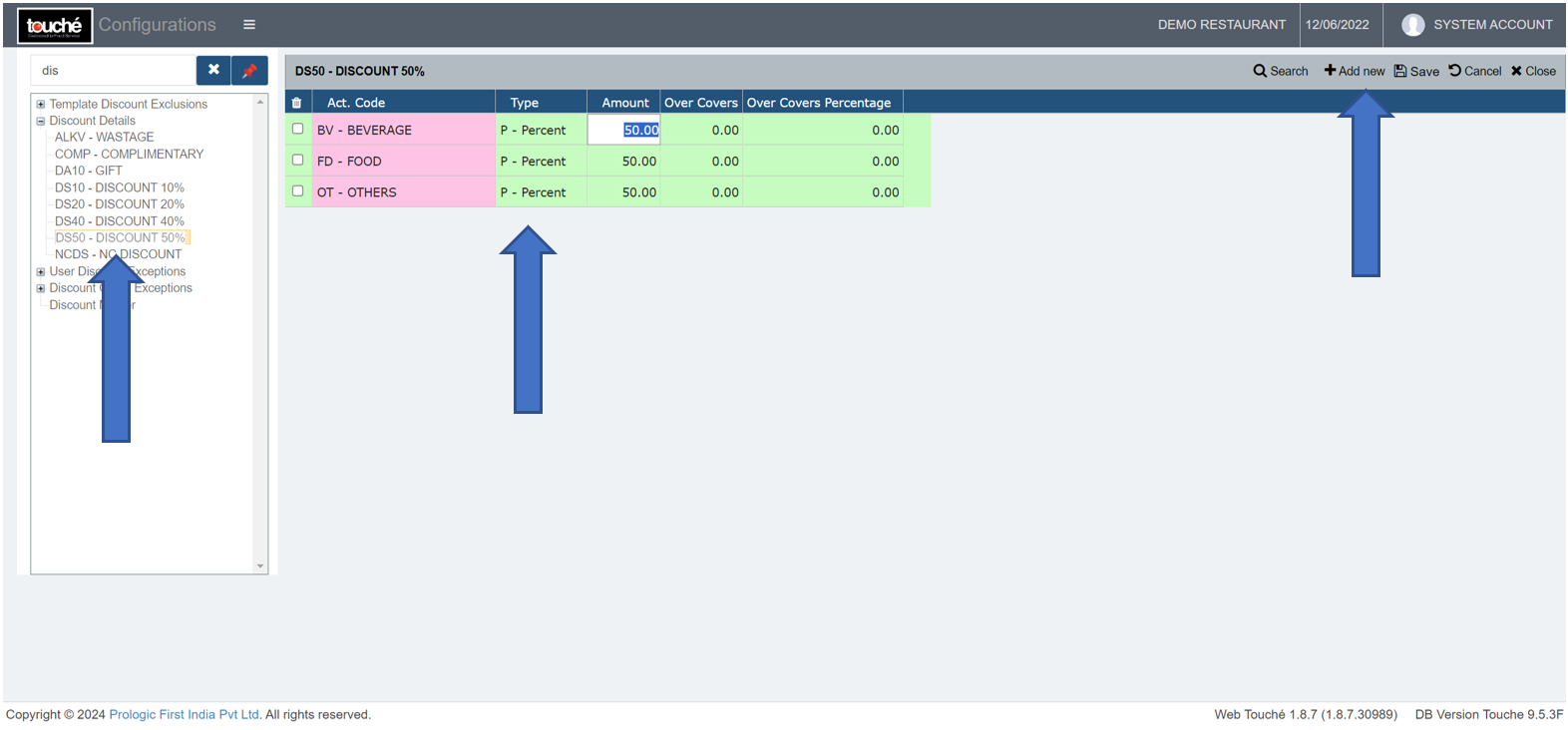
Set Type based on what type the discount is ie Fixed for amount wise, Percent for Percentage wise. Set amount as the amount/percent of discount to be applied for the same.
3. Click on ‘Save’ and verify on screen
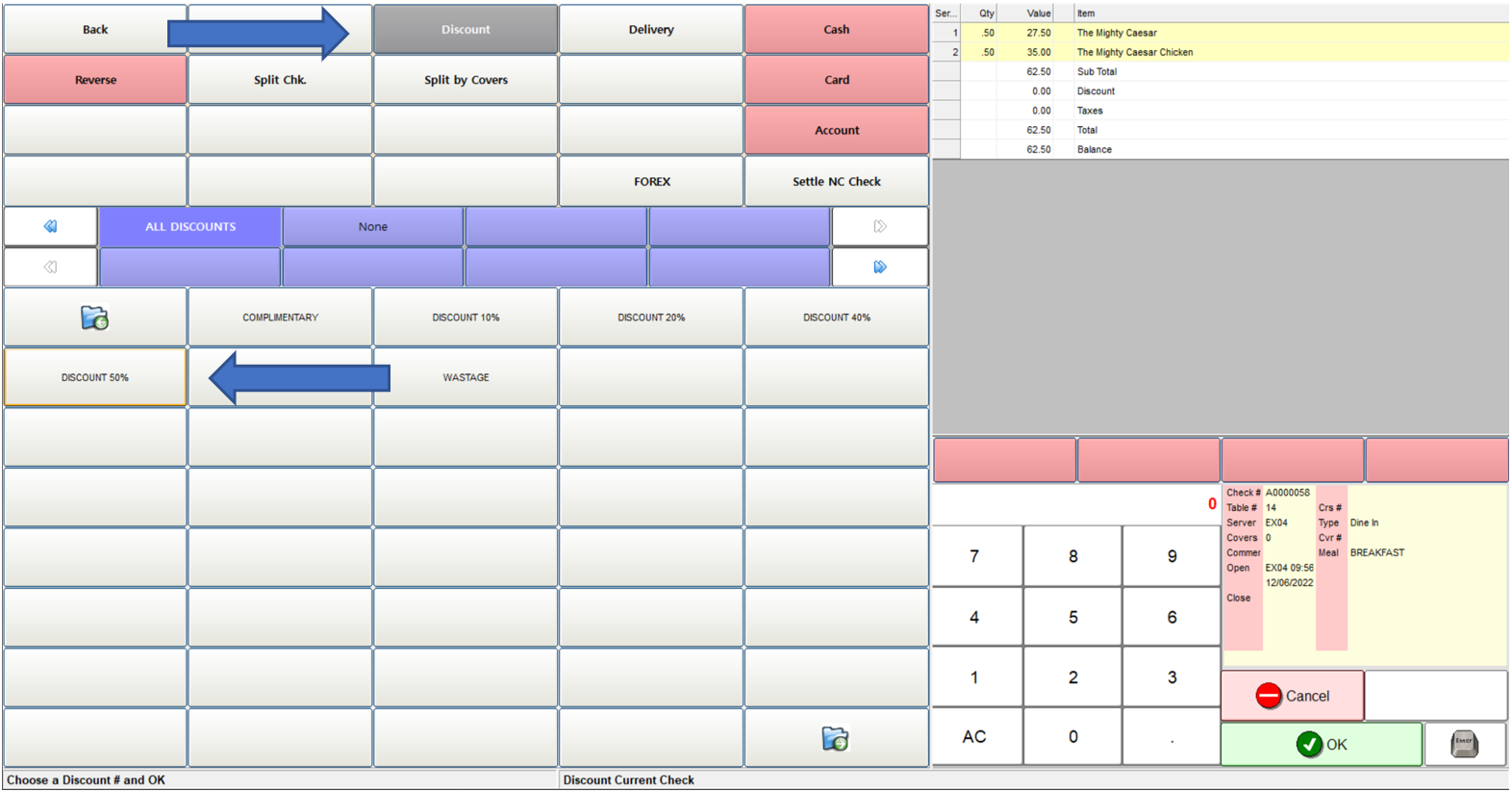
Note: If you are using hybrid/CAP setup, please wait till next day morning for the menu to reflect in POS. To make it immediate, run the MasterSync in server or contact POS support line