![logo.png]](https://kb.prologicfirst.online/hs-fs/hubfs/Imported%20sitepage%20images/logo.png?height=40&name=logo.png)
This is used in the case of splitting price between account codes with different selections under a single menu key. We will take the example to split 1 Carte key into 2, with 1 selection for food and 1 out of 2 for beverage.
Prerequisites:
-
WebTouche Link
-
Administrative Configurations Login
- Configurations Access to Items Master, Item Group, Categories, Carte Setup and Item-Menu Link
-
Item Details, including the Carte name and the item options in it.
-
Menu Details
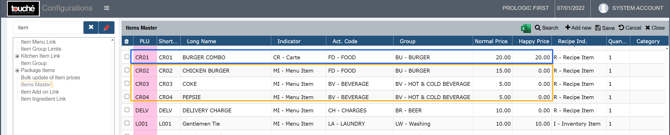
1. In Items Master, create 4 keys, 1 Carte which will act as the master key and 3 Menu Item. Enter the prices here. Link the Carte key only in Item-Menu Link to be punched in POS (Follow steps from the link: https://kb.prologicfirst.online/articles/pos-menu-item-add).
2. Refresh and go to Package Items, click the + sign and add the category names needed for selection in the Carte

3. Go to Carte Setup, select the Carte item from the Item (drop down) in the left. Select on Categories in the right and tick those that need to be part of the Carte. Once done, select on the Right Arrow.

4. Once the categories are visible in right, select on Items in the left and ticks the items part of the first category, which also needs to be ticked in the right. Once done select on the Right Arrow.
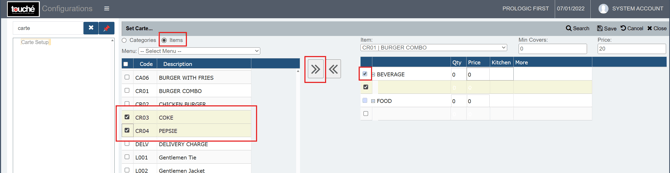
5. Repeat step 4 until all the categories are done, where for each the required max Qty, the category's Price and the item's Kitchen printer can be mapped. Click on Save once done.
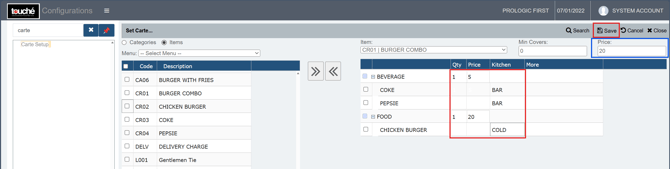
Ensure the sum of price matches to total Carte Price shown in Blue
If you are using hybrid/CAP setup, please wait till next day morning for the menu to reflect in POS. To make it immediate, run the MasterSync in server or contact POS support line