![logo.png]](https://kb.prologicfirst.online/hs-fs/hubfs/Imported%20sitepage%20images/logo.png?height=40&name=logo.png)
Step 1: Upgrade Touche to the latest version.
Step 2: Please use the below link for downloading the required files.
https://prologicdxb.sharepoint.com/:f:/s/SupportTeam905/Eh2DXdBdecdEjTSOZ_-NJrMB_V04b4tzQr8GBSZ2eT0lKw?e=owAlp4
Step 3: The control Key of BLANKC should be Y in the pointer.
Step 4: Run the below script: (please change the highlighted as it will be different for all unique for all properties)
USE parmdb
GO

DECLARE @property_id nchar(5)
SELECT    @property_id = 'DEMO'


IF NOT EXISTS(SELECT 1 FROM parmdb..prm_interface_configurations
            WHERE property_id = @property_id AND interface_id = 'SRME' AND key_code = 'BASEURL')
  BEGIN
        INSERT INTO parmdb..prm_interface_configurations
        SELECT    @property_id, 'SRME', 'BASEURL', 'https://pos.servmeco.com/pos2-stg/api/v1', getdate(), getdate(), 'DEV', ''
   END

IF NOT EXISTS(SELECT 1 FROM parmdb..prm_interface_configurations
            WHERE property_id = @property_id AND interface_id = 'SRME' AND key_code = 'APPKEY')
   BEGIN
        INSERT INTO parmdb..prm_interface_configurations
        SELECT    @property_id, 'SRME', 'APPKEY', 'touche@touche.com', getdate(), getdate(), 'DEV', ''
   END
   IF NOT EXISTS(SELECT 1 FROM parmdb..prm_interface_configurations
            WHERE property_id = @property_id AND interface_id = 'SRME' AND key_code = 'SECRETKEY')
   BEGIN
        INSERT INTO parmdb..prm_interface_configurations
        SELECT    @property_id, 'SRME', 'SECRETKEY', 'touChe@12', getdate(), getdate(), 'DEV', ''
   END
   IF NOT EXISTS(SELECT 1 FROM parmdb..prm_interface_configurations
            WHERE property_id = @property_id AND interface_id = 'SRME' AND key_code = 'ACTIVE')
   BEGIN
        INSERT INTO parmdb..prm_interface_configurations
        SELECT    @property_id, 'SRME', 'ACTIVE', 'Y', getdate(), getdate(), 'DEV', ''
   END
go
Step 5: Below are the details to be given by ServerME team:
Please note that provide the below App key only to ServeME Team
API base URL:
App key:
Property Id:
Outlet code:
Step 6: Create a user as user ID SRVM and give full right and outlet.
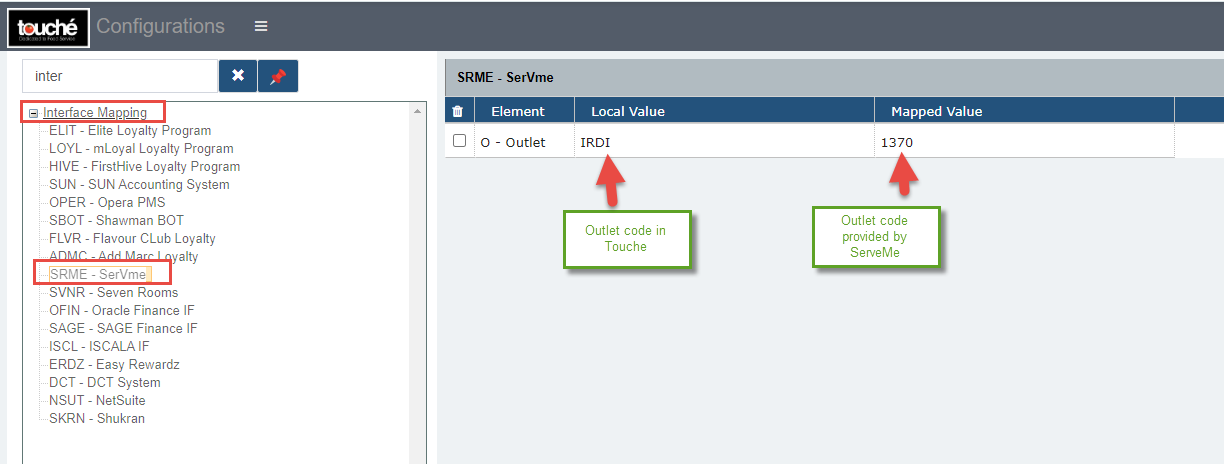
Step 7: In Interface mapping in Touche Masters:
Select the ServeME interface,, select the element as outlet, enter the local value the outlet code in Touche outlet master and mapped value as the code provided by ServeME.
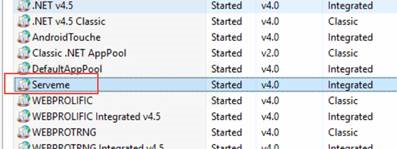
Step 8: Host the Api in a separate Application Pool ServeME in IIS. . Host the API
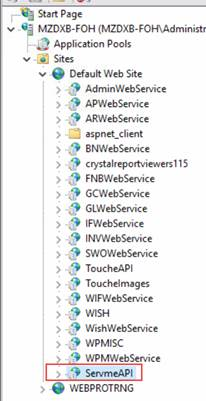
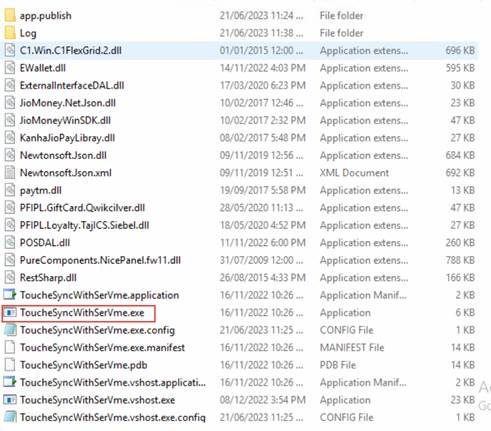
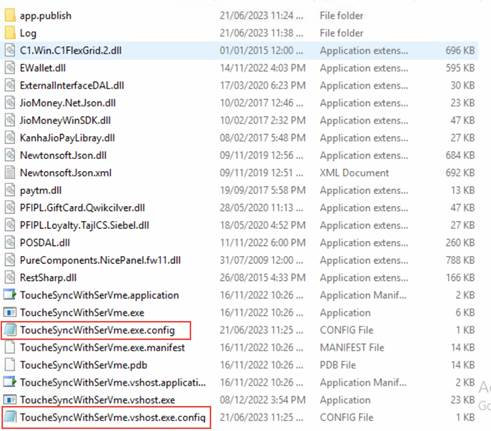
Step 9: Host the ServeME Sync application and update the server IP in the config files.
Step 10: Schedule a Task from Windows task scheduler for repeat daily every minute to update the checks.
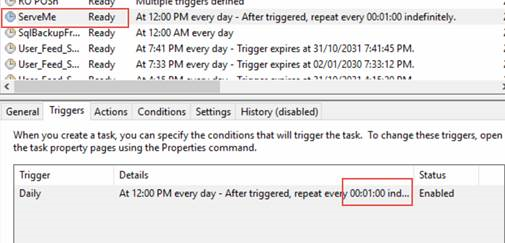
Should be pointed to the below exe: