![logo.png]](https://kb.prologicfirst.online/hs-fs/hubfs/Imported%20sitepage%20images/logo.png?height=40&name=logo.png)
Accessing the Printer Setup
- Open the Touche application.
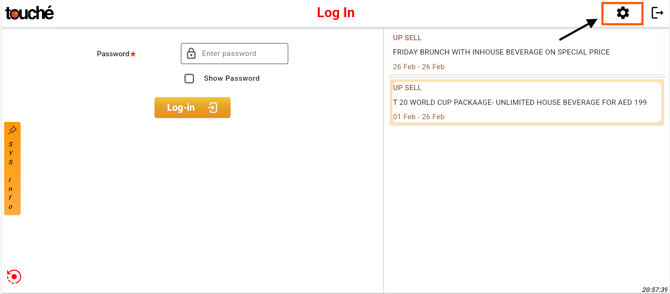
- Click on the Server Settings icon located on the top-right corner of the screen.
-
You will be taken to the Server Settings page.
-
From here, you can set up the printer in two ways
Method 1: System Printing
Use this method when the printer is installed directly on your system (USB printer or Windows-installed printer).
Steps:
-
Make sure the printer is properly installed in Windows and set as the Default Printer.
-
In Touche Server Settings:
-
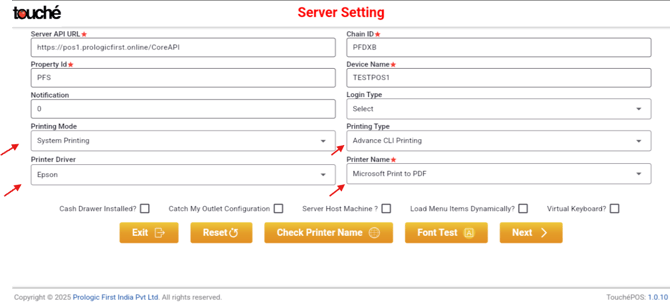
Set Printing Mode to System Printing.
-
Select the Printer Name as it appears in your Windows printer list.
-
Set Printing Type to Advance CLI Printing.
-
Set Printer Driver to Epson (if you are using an Epson printer).
-
-
Save the settings and test a print.
Method 2: Network Printing
Use this method when configuring a Network (LAN) Printer with an IP address.
Steps:
-
Ensure the printer has a static IP address assigned.
-
In Touche Server Settings:
-
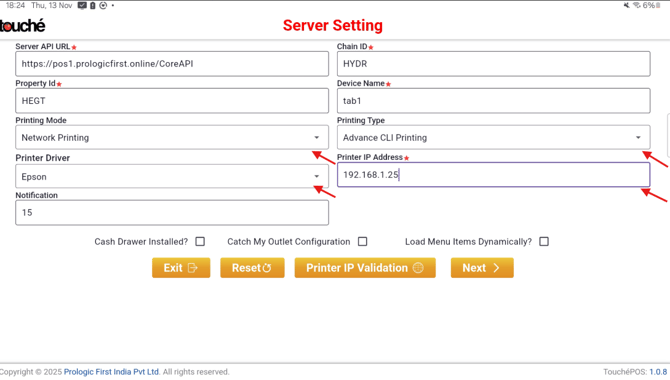
Set Printing Mode to Network Printing.
-
Enter the Printer IP Address.
-
-
Save the settings and perform a test print.