![logo.png]](https://kb.prologicfirst.online/hs-fs/hubfs/Imported%20sitepage%20images/logo.png?height=40&name=logo.png)
Prerequisites
- The new system must have access to the server system.
- The system should be able to access the server's shared folder and locate the necessary directory.
- Touche only supports Windows OS, which is incompatible with macOS or Linux OS.
STEPS
1. Find the necessary directory to copy the Touche frontend from the server, and also locate the install folder. It might be in the tools folder or in the frontend folder itself.
Make sure the frontend you are copying is the latest version in use, as there might be older backups on your system.
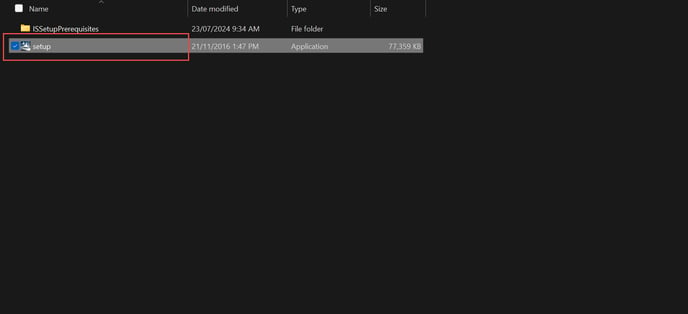
2. Create a new folder on your system, preferably called TOUCHE. Add the frontend and install files, and in the install folder, find the setup executable file run it, and follow the shown steps
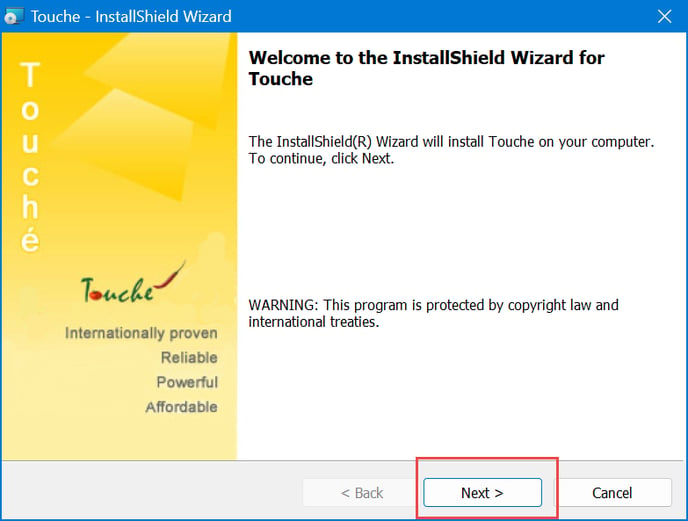
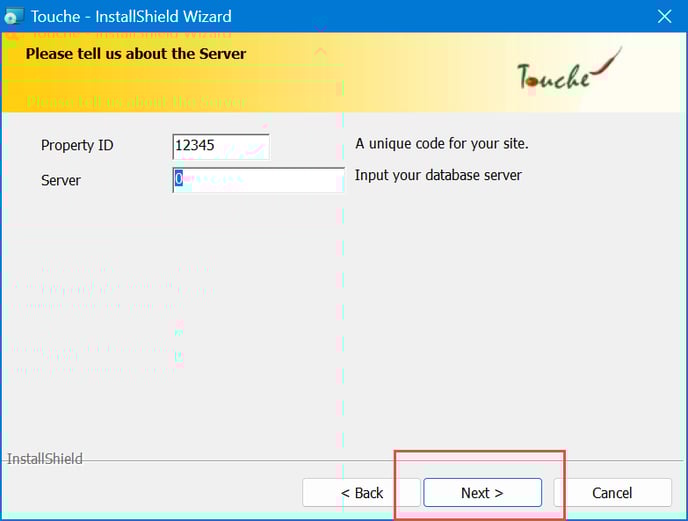
- Press Next.
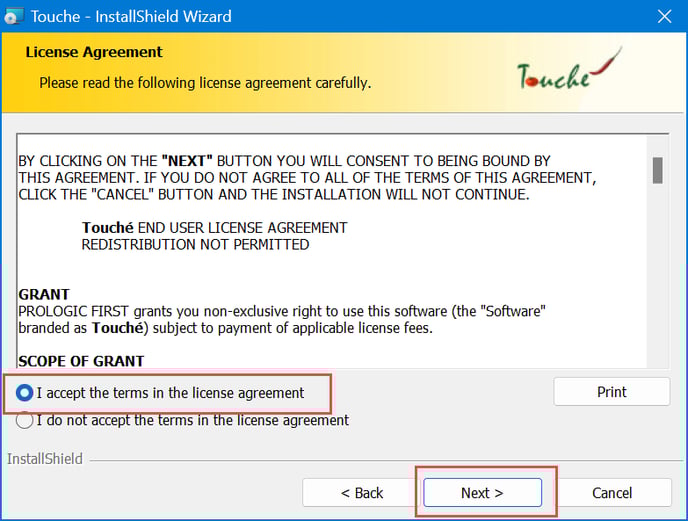
- Accept the terms
- Keep the insert fields as default without altering any details.
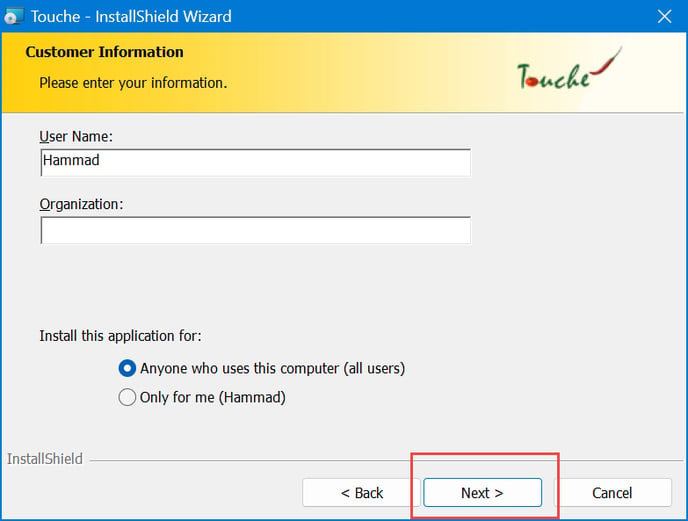
- Keep the insert fields as default without altering any details.
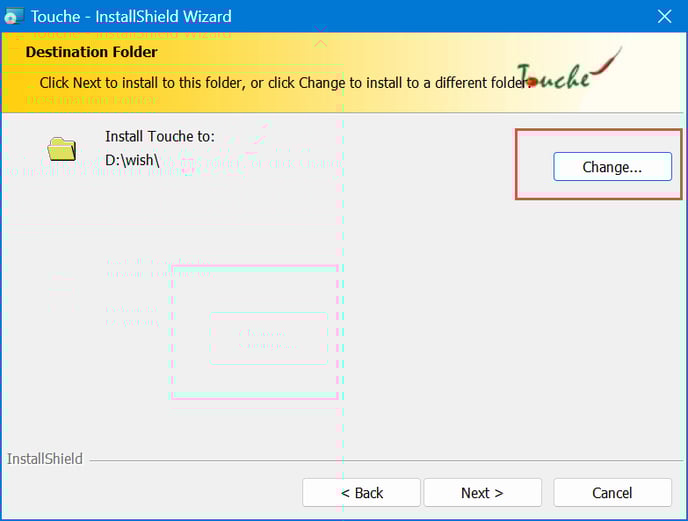
- Change the installation folder
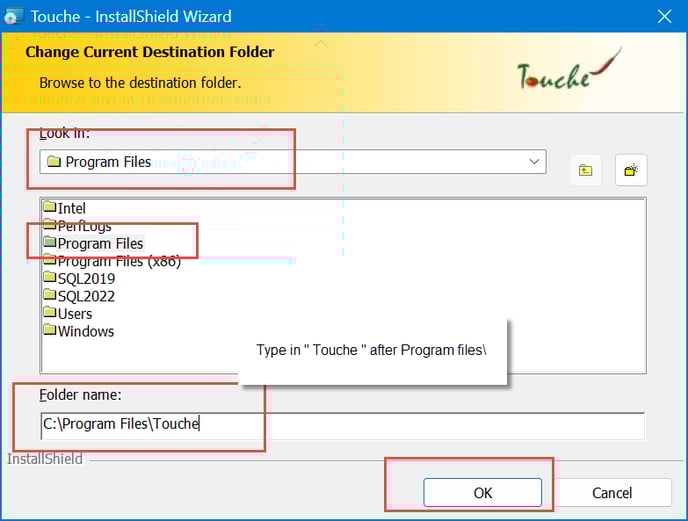
- Add the \Touche so it creates a new folder.
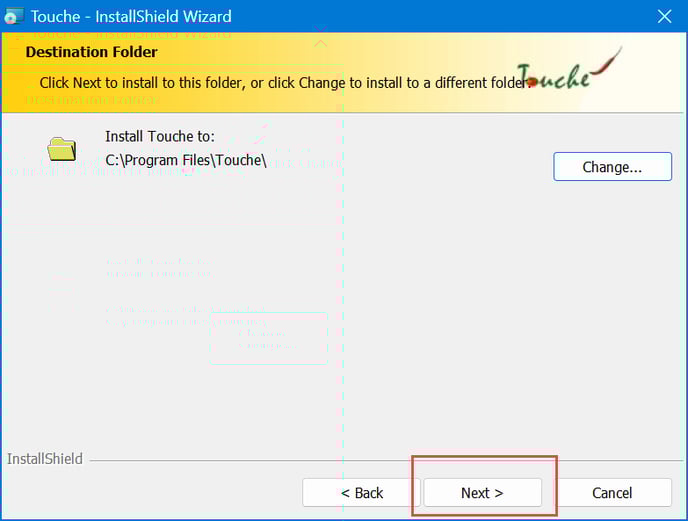
- Press Next
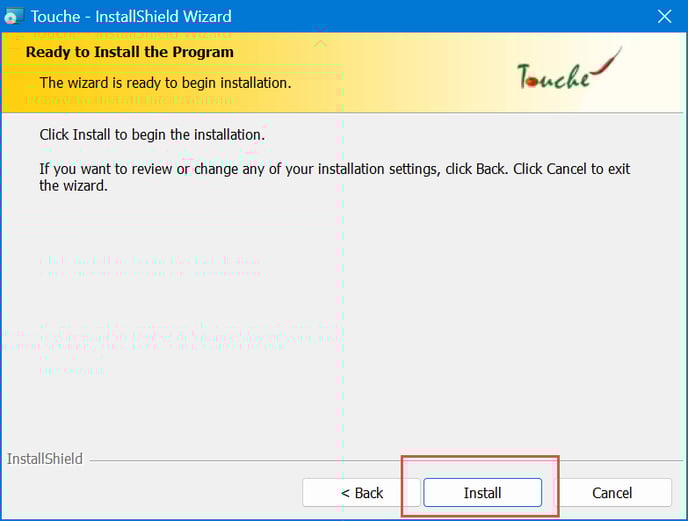
- Install
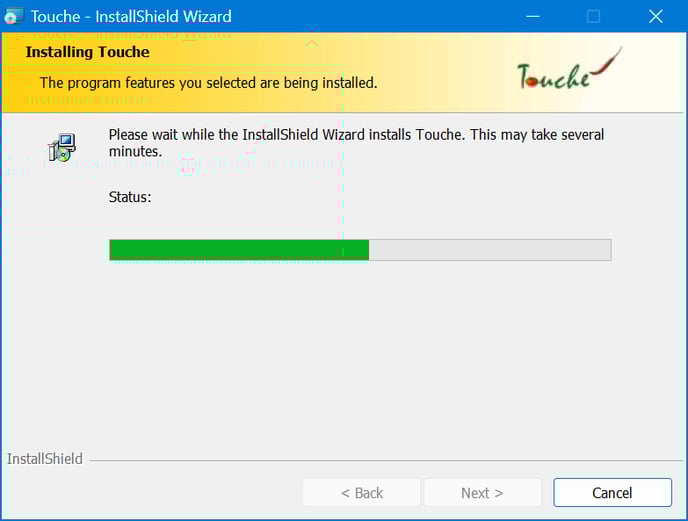
- Wait for it
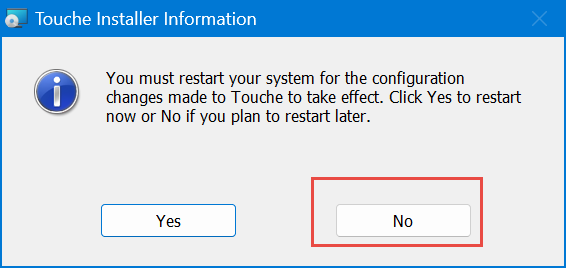
- No.
After the installation, we will need to edit and run some batch files from the front-end folder.
We will go to the DLL folder ;
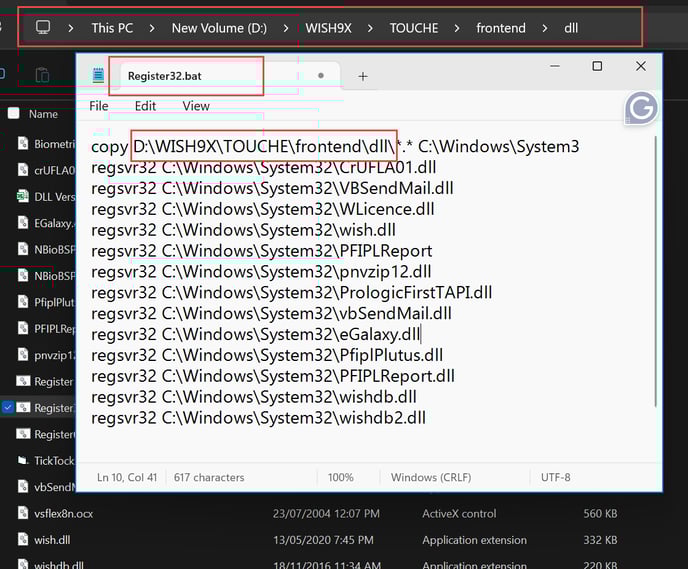
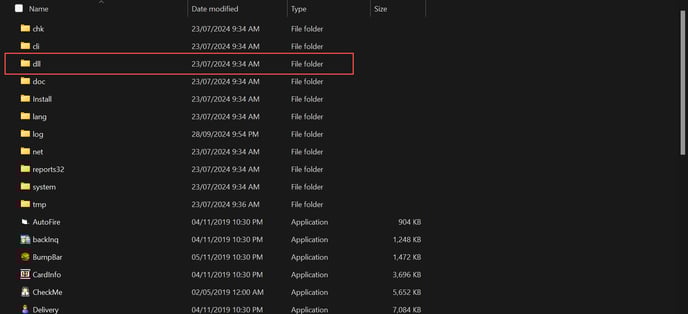 Next, open the file named Register32.bat using Notepad. Copy the path to the DLL file and replace the existing path in the script with the new path you copied.
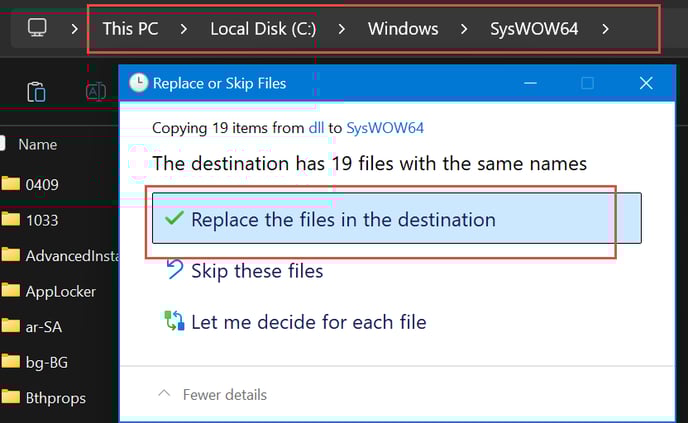
Please note that the file `register32.bat` should be used if you have a 32-bit PC. If you have a 64-bit PC, use `register64.bat` instead. Additionally, paste the DLL files into the `System32` folder for 32-bit systems and into the `SysWOW64` folder for 64-bit systems.
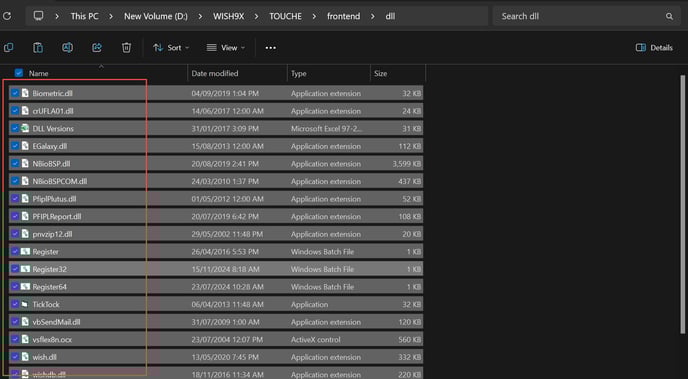
Copy all the DLL files and paste them into the SysWOW64 folder, typically located in your Windows system's C: drive.
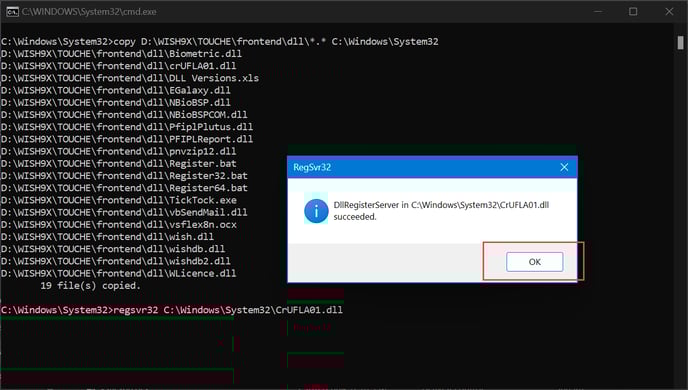
Next, run the batch file as an administrator. Click "OK" continuously until all files have been compiled. You may encounter 2-3 compilation errors, which is normal; however, if any files fail to compile, please revisit the previous steps to ensure everything was done correctly.
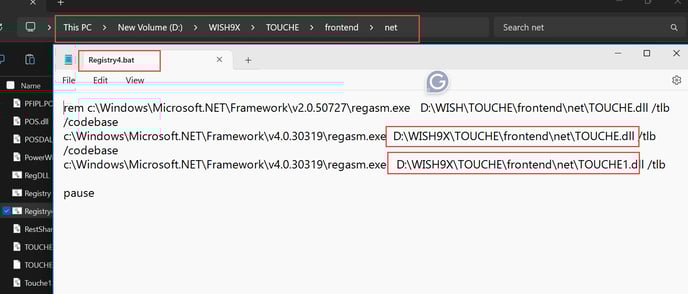
Next, navigate to the 'net' folder within the frontend directory. Locate the file named 'registry4.bat' and update the path in the script for last next two lines, following the example provided in the image below.
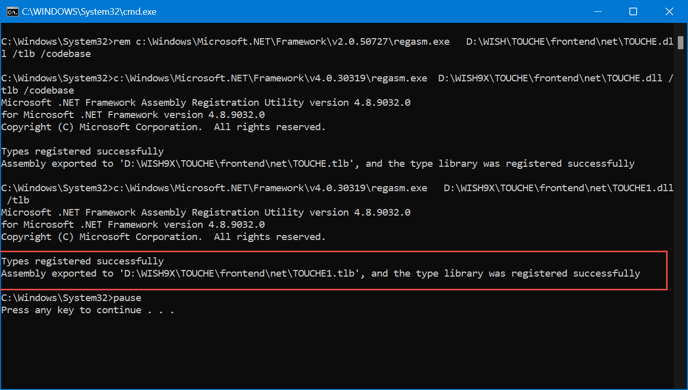
Run the same batch file as administrator and check if it compiles successfully as shown in the image below.
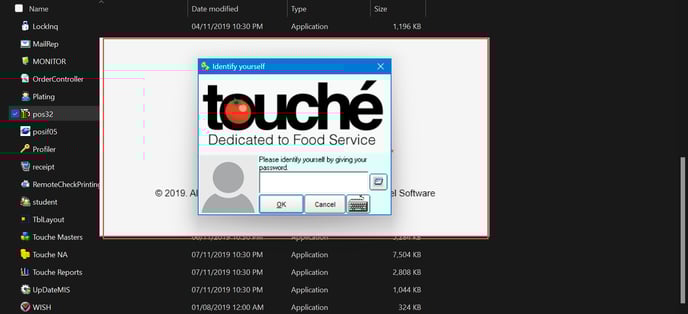
Congratulations, your Touche system is now fully operational!
if you encounter any issues please get back to us and we will further assist you.