![logo.png]](https://kb.prologicfirst.online/hs-fs/hubfs/Imported%20sitepage%20images/logo.png?height=40&name=logo.png)
Setup templates
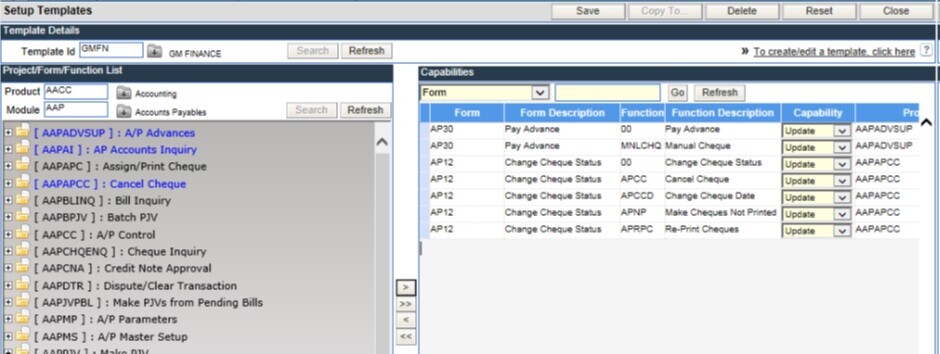
Templates are created to assign access rights of various functions in WebProlific to users, based on the operations and individual responsibilities. A template once created can be assigned to more than one user.
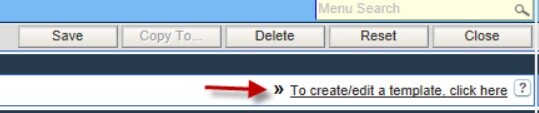
To create a Template:
- Click on the link – To create/edit a template click here, present on the right top of the screen.
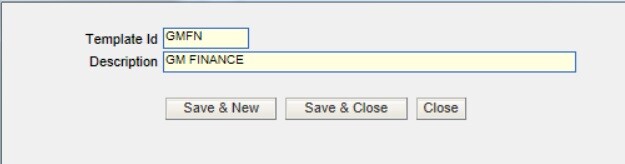
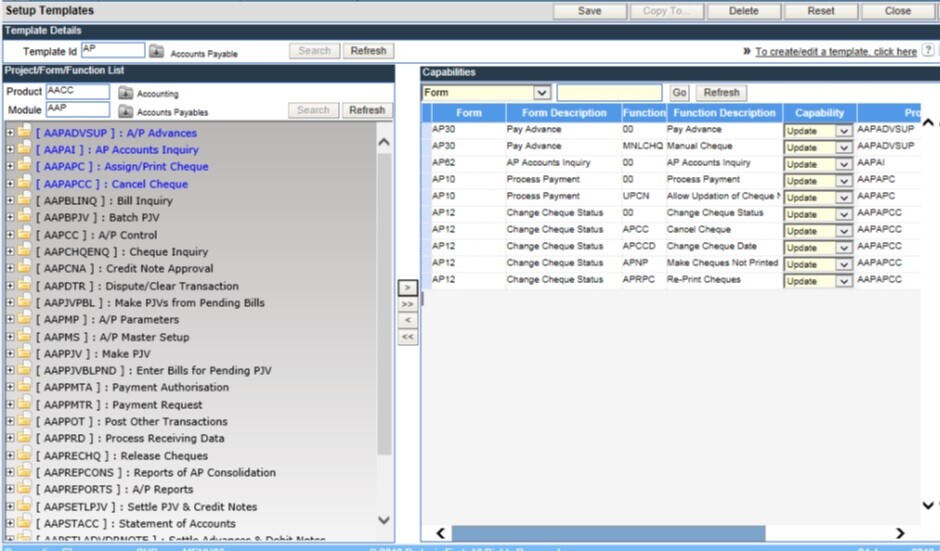
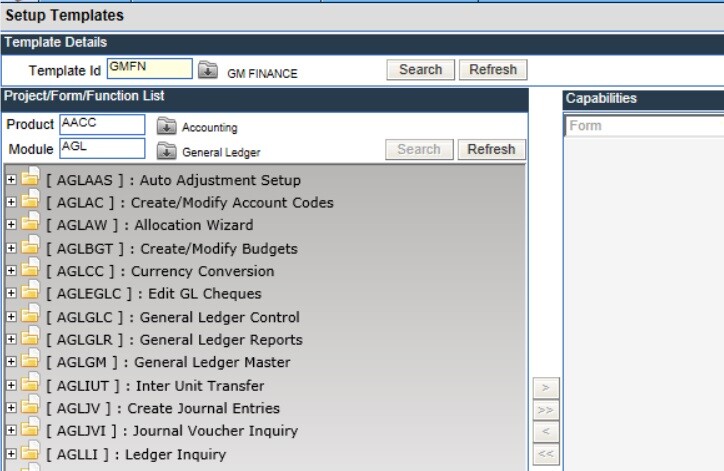
4. Once the Template ID is created, the next step is to assign the specific functions to the same. All functions of Webprolific are listed on the left of the screen. To locate specific functions, enter the product and the module, and click on Search.
Setup users
This is where the users of Webprolific are created and respective templates assigned. Also, specific alerts that should be sent to the user are linked. Any change to existing users can also be done in this screen.
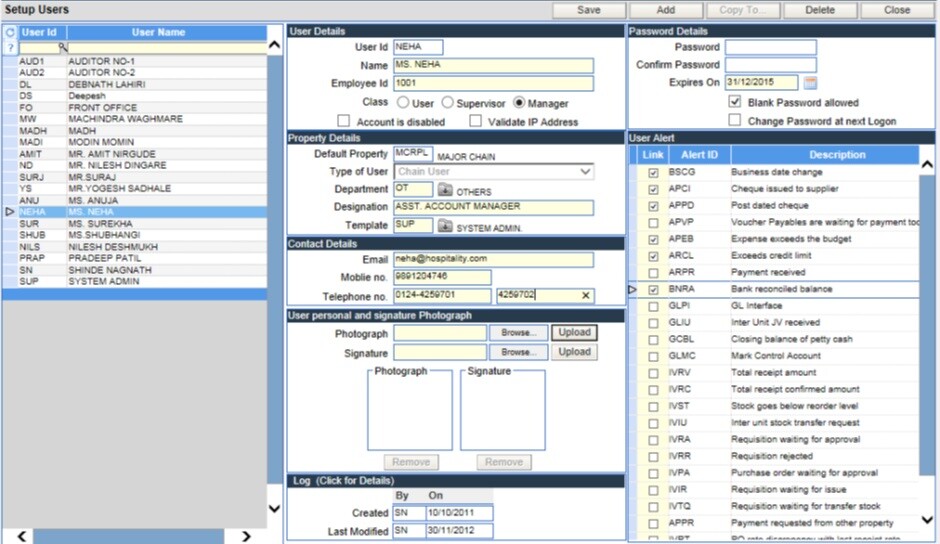
To create a new user:
- Load the screen of Setup Users and click the [Add] button on top right.
- The existing users are listed on the left of the screen.
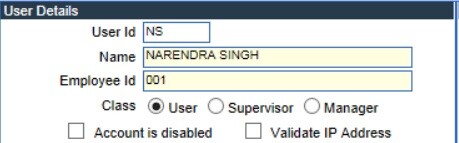
- Type in the Id of the new user in the field – User Id.
- Type in the Name and the Employee Id.
- Select the classification of the user, which can be User, Supervisor or Manager.
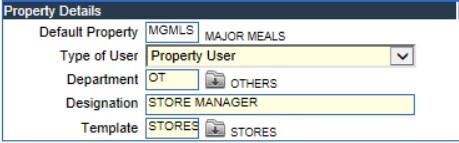
8. Type in the Contact details of the
user, which are email id, telephone number and mobile number.
9. The photograph and the signature of the user can also be stored along with the otherdetails.
10. The user password is required to login to the application. Enter the password and also confirm by re-entering again in the field – Confirm Password.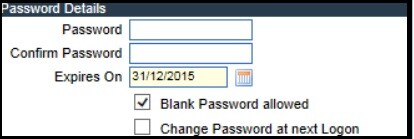
12. If the user is allowed a password which is blank, then tick the checkbox of Blank Password allowed.
13. If the password should be changed on every login, then tick the checkbox of – Change Password at next Logon.
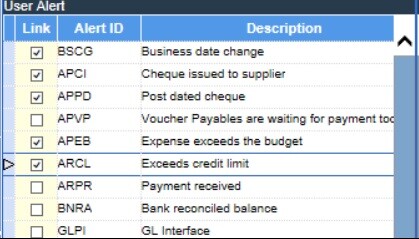
14. Select the alerts from the list, by ticking the checkbox against each, that should be fired for the user.