![logo.png]](https://kb.prologicfirst.online/hs-fs/hubfs/Imported%20sitepage%20images/logo.png?height=40&name=logo.png)
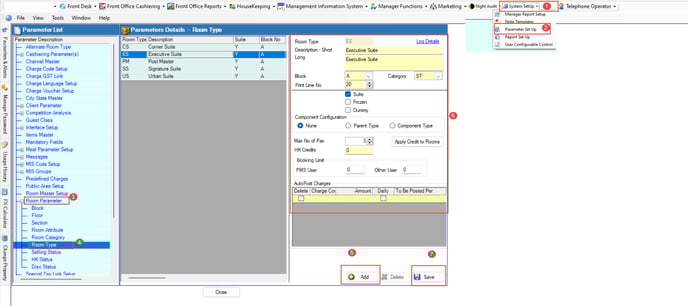
To create a new room Type Kindly follow the below steps.
- Open Front Office PMS.
- Click on system setup - Parameter Setup.
- Click on room Parameter -Room Type
- Click on new, fill in all the details, and click on save.
Notes:
- - **Room Type** This code is displayed consistently throughout the application.
- - **Description:- Short:** A brief name for the room type.
- - **Long:** A detailed name for the room type.
- - **Block:** Indicates the block to which this room type belongs.
- - **Category:** Specifies the category that the room type falls under.
- - **Print Line No:** This number is used for internal sequencing of data.
- - **Suite:** Check this option if the room belongs to the suite category.
- - **Frozen:** Check this option if the room type is not in use. After selecting this, the room type will no longer be displayed anywhere in the application.
- - **Component Room:** This option is used when the room is adjoining. Otherwise, select "none."
- - **Maximum Number of Guests (PAX):** Indicates the maximum number of people allowed in this particular room type.