![logo.png]](https://kb.prologicfirst.online/hs-fs/hubfs/Imported%20sitepage%20images/logo.png?height=40&name=logo.png)
Daily Sales Report is a customizable report you find in the report setup which is further in the system configuration as shown in the figure below.
You can find it both in MYCLOUD and WISHNET and I have attached the snapshots for MYCLOUD but the concept for WISHNET is the same as MYCLOUD.
So regardless of which software you are using this article will help you understand the DSR reports very well.
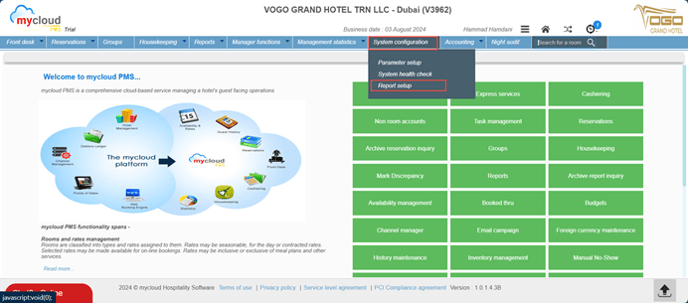
You can customize this report according to your requirements by adding various constraints and values. The report includes formulas based on occupancy-related values, charges, and payments, which we will discuss further in the article. You can also use operators with line numbers to obtain specific values from different calculations. Additionally, you can calculate totals of specific revenue based on line items or formulas and include remarks or subtotals as needed.
Next, we will outline the necessary details for the daily sales report
We can set up a new daily sales report as shown below
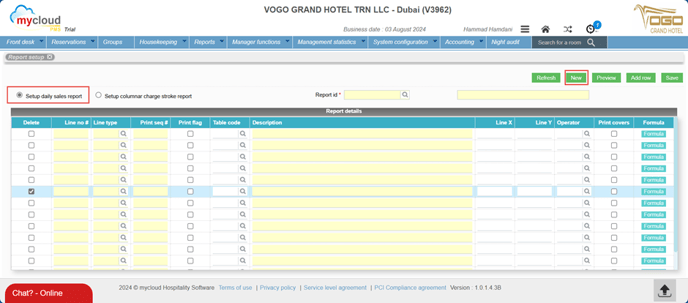
One can fill in the Report ID and report description and then go ahead and save the report as shown below
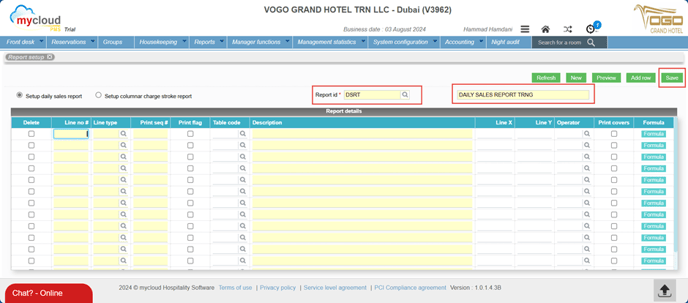
In the following section, we will analyze these row attributes and their respective utilities.

- Delete Flag: The delete flag allows you to remove certain rows that are no longer useful. Simply tick the flag and save the file, the specified rows will be deleted.
- Line No#: This input field assigns a value to the entire line which can later be used in Line X and Line Y to perform operations and obtain the desired results.
- Line Type: This field offers several options, as shown in the image below. It defines the purpose of the line, whether it is a Calculation, a remark, or another category. Each option will be explained in detail below.
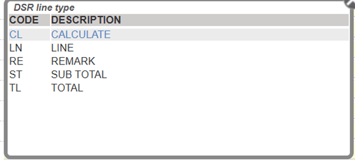
- CL-CALCULATE: The purpose of this line type is to calculate the charge codes specified in the formulas and sum them to achieve the desired outcome.
- LN-LINE: This line type is used to leverage the values of existing lines and perform calculations between them using operators.
- RE-REMARK: The remark feature allows us to organize headings and create a more structured report with clearly defined titles.
- ST-SUB TOTAL: The subtotal line type enables us to sum up all the lines that contain values, providing a clear aggregate of those entries.
- TL-TOTAL: Similar to the subtotal, the total line type calculates the overall sum, incorporating all the subtotals. The primary distinction between subtotal and total is evident in the final value display.
- Print Seq#: This input field helps the system arrange the values in the specified order, as the print sequence determines their placement in the report.
Note: Maintaining a difference of 10 units for the print sequence is recommended. This allows for easy insertion of additional values later by utilizing the gaps created.
- Print Flag: This checkbox determines whether the row will be printed or not. When selected, the system will include the row in the report. You can create a line that is not printed but is still used to derive other values.
- Table Code: This option field allows us to specify the type of value we want in the formula list. It displays the relevant charge codes based on their specific charge code types, as outlined below.
- C-CHARGES: This filter displays all the charge codes available in the system in the formula set.
- O-OCCUPANCY: This filter displays all occupancy-related metrics, as listed below
- No of Reservations, No of Reservations Arrivals, No of Cancellations, Number of No-Shows, No of Turnaways, No of House Use, No of POO (Permenanat OUT of ORDER), Saleable Rooms, No of TOO (Temporary Out of Order), No of Complimentary Rooms, No of Room Arrivals, No of Room Departures, No of Guest Arrivals, No of Guest Departures, Room Nights, Adult Nights, Youth Nights, Child Nights, Guest Arrivals Domestic, Guest Arrivals Foreign, No of Day Use, No of Vacant Rooms.
- P-PAYMENTS: This filter shows all payment-related charge codes in the formulas.
- R-REVENUES: This filter is used to show values like Room type wise room revenue in the formula set
- Description: This input field is used to provide a description for the value associated with the line, which will be reflected in the report.
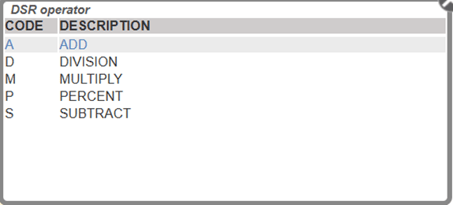
- Line X, Line Y & Operator: These input fields allow you to input two variables for calculation. Using the selected operator, you can perform operations such as addition, subtraction, multiplication, division, or percentage calculation, as shown in the image below.
- Print Covers: This checkbox determines whether to print the FNB cover details. This shows the number of guests per check.
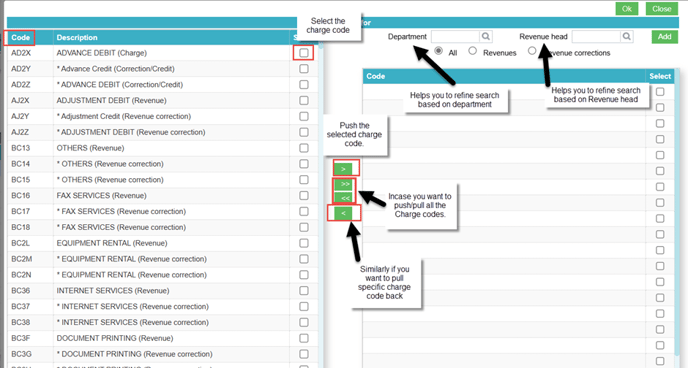
- Formula: This is where you select the charges to be added for a line, the formula set will show different values based on the table code selected and as you can see down you just need to select and push the required charge codes to the right-hand side for them to be calculated as shown in the image below .
In conclusion, the information provided outlines the fundamental elements necessary for the creation of a daily sales report.
Should you require any additional clarification or assistance, please do not hesitate to reach out to us at mea-support@prologicfirst.ae.