![logo.png]](https://kb.prologicfirst.online/hs-fs/hubfs/Imported%20sitepage%20images/logo.png?height=40&name=logo.png)
Post a Deposit / Refund on a Guest Reservation
Deposit and refund posting has the same process only the charge code selected are different. While posting deposit we select charge code of credit type and while doing refund charge code to be used is of debit type.
To post a deposit or refund
1. Click on Front Desk and select Guest Details (New) form.
2. Search and select the reservation on which deposit is to be posted.
3. Click on Post and Void Charges.
4. Type your password and click on OK.
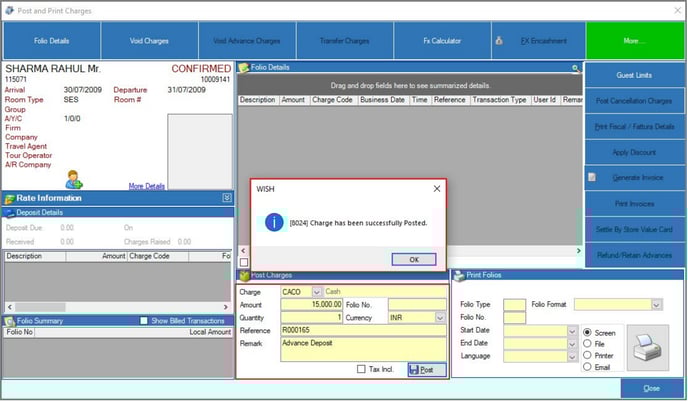
5. Select the charge code for the posting and type amount, Reference and Remark.
6. Click on Post or press Alt+P
7. Click on OK
Void Deposit
To void a deposit
1. Click on Void charges.
2. Click on void checkbox and type the reason for voiding.
3. Click on Void or press Alt+V
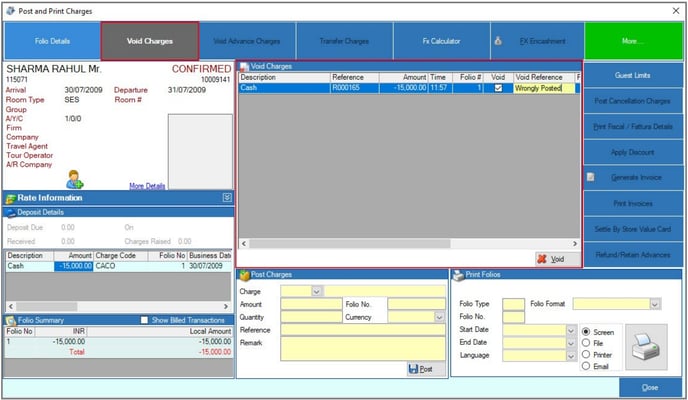
4. Click on OK
Transfer Deposit to another Guest
Advance deposit can be transferred to another guest only if the reservation with deposit is of Cancelled/ No show/ Torn Away status.
To Transfer Deposit to another guest
1. Cancel the Guest Reservation. (Follow the steps given in Cancel a reservation section of the manual)
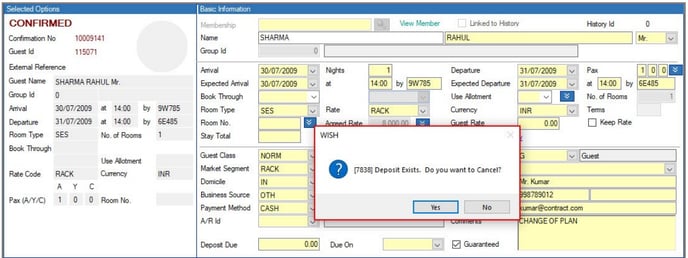
2. Click on Yes
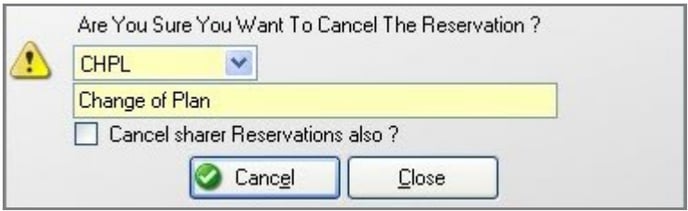
3. Click on Post/Print Charges or press Alt+P. Type your password and click on OK.
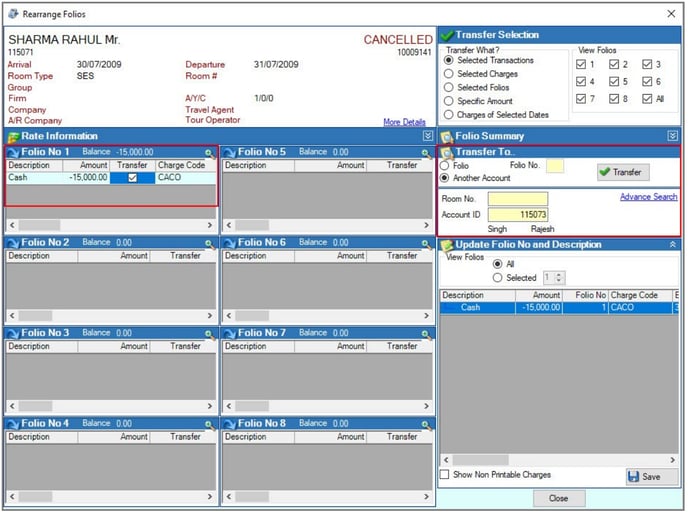
4. Click on Transfer Charges or press Alt+T
5. Select the charge to be transferred.
6. To transfer the advance to another guest, click on Another Account and type the Room No. / Account Id or
click on Advance search and search for the guest the advance has to be transferred to.
7. Click on Transfer or press Alt+T.
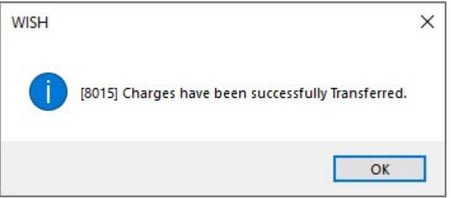
8. Click on OK