![logo.png]](https://kb.prologicfirst.online/hs-fs/hubfs/Imported%20sitepage%20images/logo.png?height=40&name=logo.png)
Prerequisites:
-
WebTouche Link
-
Administrative Configurations Login
- Configurations Access to Item-Menu Link and Menu Head-Menu Link
-
Sub Menu Details
-
Menu Head Details
Understand further about the creation structure here:
https://kb.prologicfirst.online/articles/pos-structure-menu-item
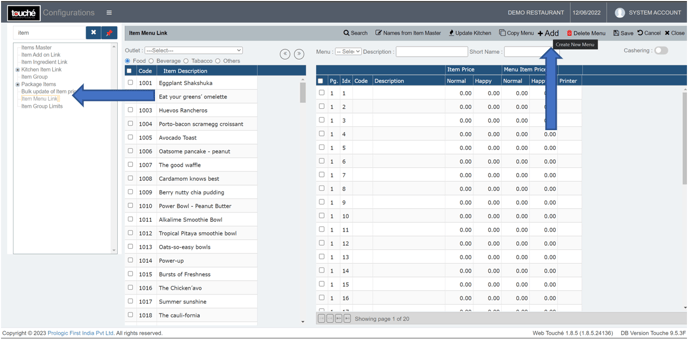
1. Go to Item Menu Link and Click on Add
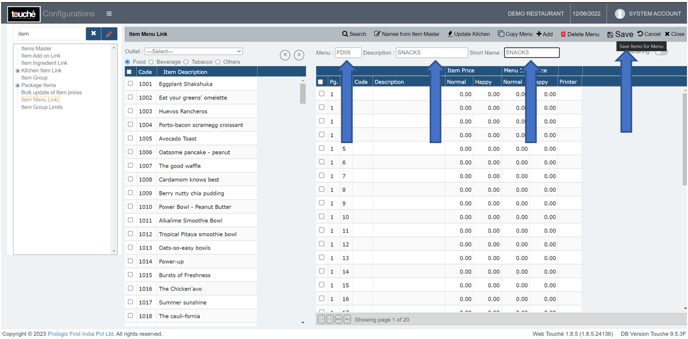
2. Enter a unique code for the sub menu, as well as a short name and description, which both can be same, and click on Save.
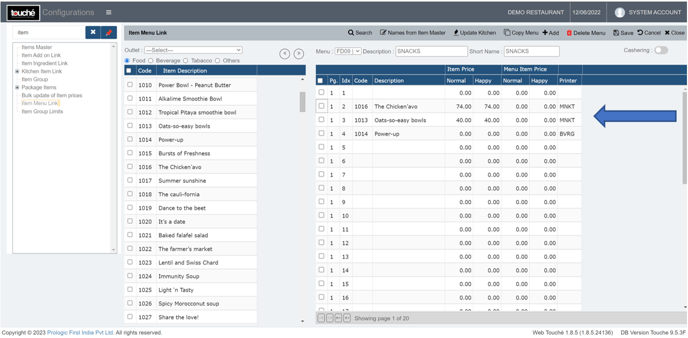
3. Add the items you want to link to this new sub menu.
Refer: https://kb.prologicfirst.online/articles/pos-menu-item-add
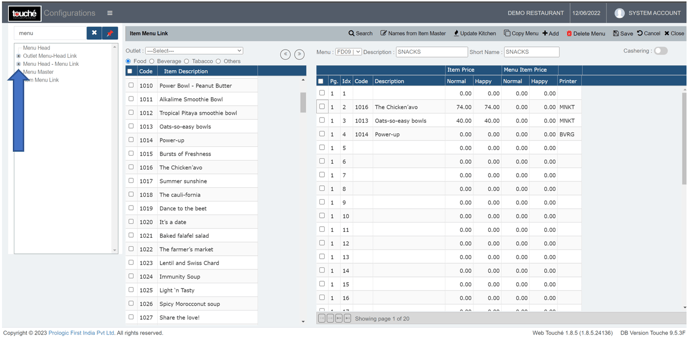
4. Go to Menu-Head Menu Link and click on the ‘+’ icon to its left.
5. Select the Menu Head (blue key) to which you want to link the sub menu (green key), then click on Add New to select the sub menu you just created.
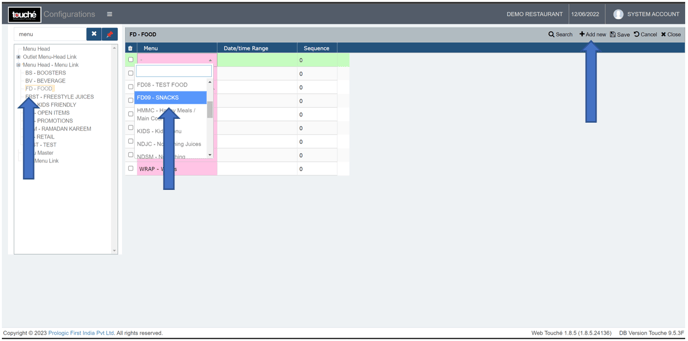
You can refer the Menu Head name and code from the POS as shown below
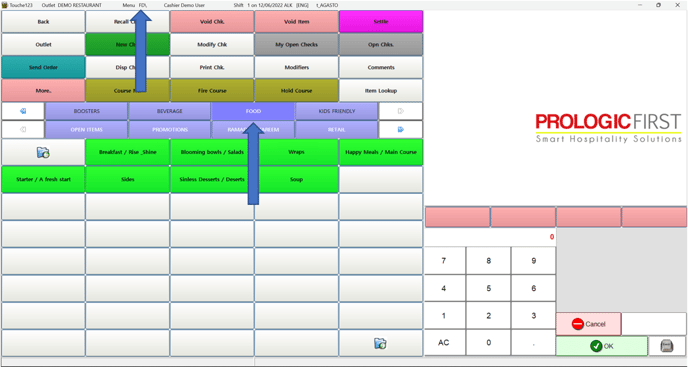
Note: To remove/delink sub-menu from POS, tick the left boxes of those sub menus you want to remove here
6. Click on ‘Save’ and verify on screen
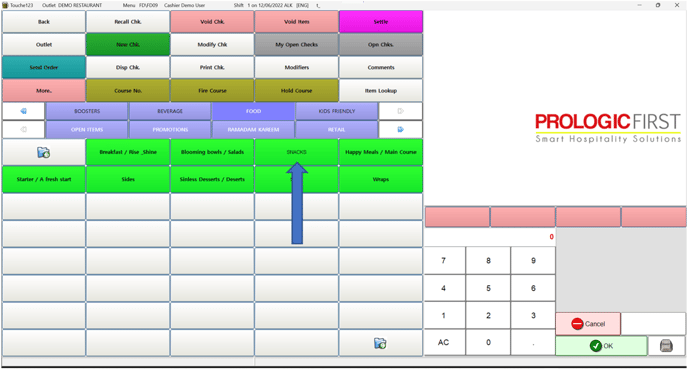
If you are using hybrid/CAP setup, please wait till next day morning for the menu to reflect in POS. To make it immediate, run the MasterSync in server or contact POS support line