![logo.png]](https://kb.prologicfirst.online/hs-fs/hubfs/Imported%20sitepage%20images/logo.png?height=40&name=logo.png)
To utilize this feature, it is essential that the KOT printer is compatible with SNMP. This has been successfully tested only with Epson TMU 220B Kitchen printer.
### Steps for Configuration ###
- ### Step 1: Verify Required Files
Ensure that the following files are located in the System folder of the Touché frontend directory:
1. Interop.OLEPRNLib.dll
2. PFIPLPrinterStatus.exe
3. PrnStatus.oui
- ### Step 2: Configure Printer Settings
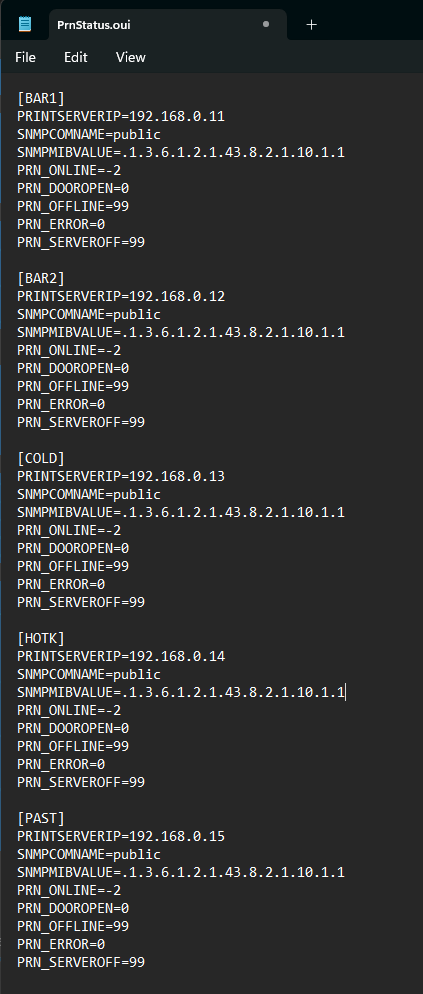
Open the PrnStatus.oui file and enter the kitchen codes along with the IP addresses of the KOT printers where you wish to configure the backup printer.
Here is an example of the parameters to include in the PrnStatus.oui file. In this example, "BAR1, BAR2, COLD, HOTK, PAST" represents the Kitchen Code, while "PRINTSERVERIP" should be replaced with the actual IP address of the KOT printer. Ensure that all other fields match the format provided below.
- ### Step 3: Enable Control for Backup KOT Printer
Ensure that the control for backup KOT printer is enabled. This will allow the system to properly communicate with and monitor the printer's status.
To enable control for the backup KOT printer, log in to Web Touché, navigate to Configurations, then select Control Center. Once there, update the value of the key KOTCHK to 'Y'.

- ### Step 4: Configure Kitchen Master Settings
In this step, ensure that the Kitchen Master settings are properly configured to facilitate seamless communication between the system and the KOT printers. This is crucial for effective order management and monitoring of printer status.
To access the Kitchen Master settings, log in to Web Touché and navigate to the Configurations section, then select Kitchen Master.
In the Kitchen Master settings, you need to configure the control key to 'NYY' for any kitchens where you want to enable a backup printer. For all other kitchens, set the control key to 'NYN'. Additionally, specify the alternate kitchen for redirecting the Kitchen Order Ticket (KOT).
Please ensure that the backup printer code consists of exactly 2 digits.
