![logo.png]](https://kb.prologicfirst.online/hs-fs/hubfs/Imported%20sitepage%20images/logo.png?height=40&name=logo.png)
To proceed with the payment to the supplier, cheques (both electronic and manual) need to be generated. Other methods of payment supported by Webprolific are direct bank transfer, GIRO, BACS, TT and RTGS. All these payment methods are carried out using the screen of PROCESS PAYMENT, available in the main menu.
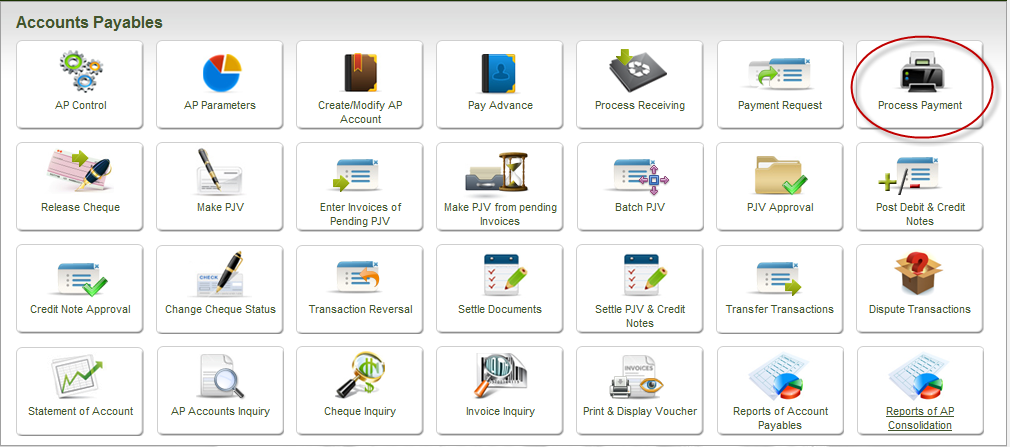
The following screen is loaded on choosing the option of Process Payment
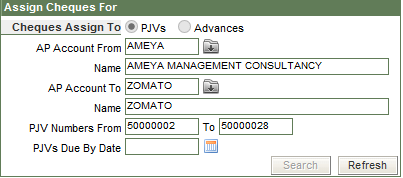
This is the extreme left top section of the screen in which you can enter the selection criteria to list the records for payment process. Any or all of the fields can be entered to filter the records. Click the Search button for the system to display the list of matching records.
By default, the option of PJV is selected. The same screen is used to process advance payments as well, therefore the other option of Advances.
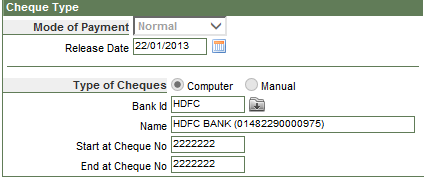
This is where you choose the method of payment. By default it is Normal, which means computer generated cheques.
The Bank id displayed is the default bank id defined in the AP Controls screen. This can be changed to another bank as per the requirement. The Start Cheque number is displayed, however the End Cheque number should be entered based on how many cheques are being assigned to the PJVs.
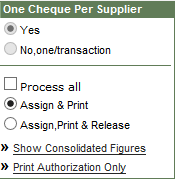
You can choose to assign a single cheque for all the purchase journals of a supplier by selecting Yes (chosen by default), or, separate cheques to each PJV of a supplier, by choosing – No, one/transaction.
Ticking the Process All cheque box will select all the transactions listed in the lower half of the screen, for payment process.
The screen can be used for just assigning and printing the cheques OR assign, print and also release the cheque to the supplier. It can also be used to print only the Authorization Letters for the selected records.
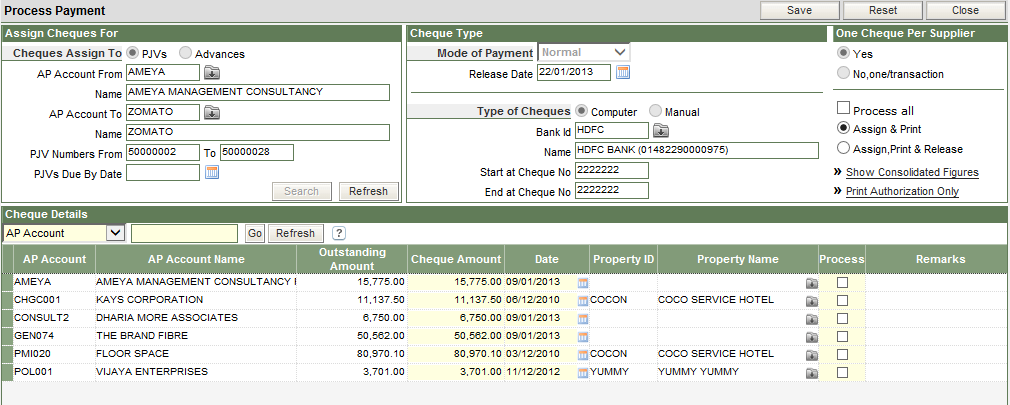
This is the lower half of the screen in which the filtered records are displayed. To choose the record(s) for payment process, tick the checkbox in the Process column.
The cheque amount and date can be changed before proceeding, depending on how much amount is being paid and the date that should be reflecting on the cheque. Postdated cheques can also be assigned, however such cheques can be released only when the business date in the application is equal or greater than the cheque date.

Click the Save button present on top of the screen. The following message appears
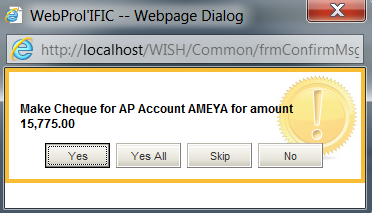
Click Yes/Yes All to proceed. The system will prompt with the following message on successful completion of assigning and printing of the cheque.
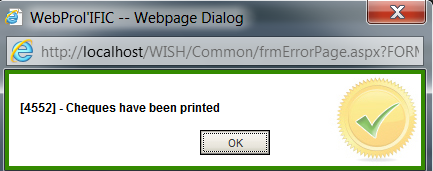
Assign Print and Release:
In case the option chosen is to assign, print and also release the cheque then once the cheque is printed and the system displays the message of success (ref. above picture), the following screen is loaded automatically.
This is the Release Cheque Screen, required to carry out the function of releasing the cheque to the supplier.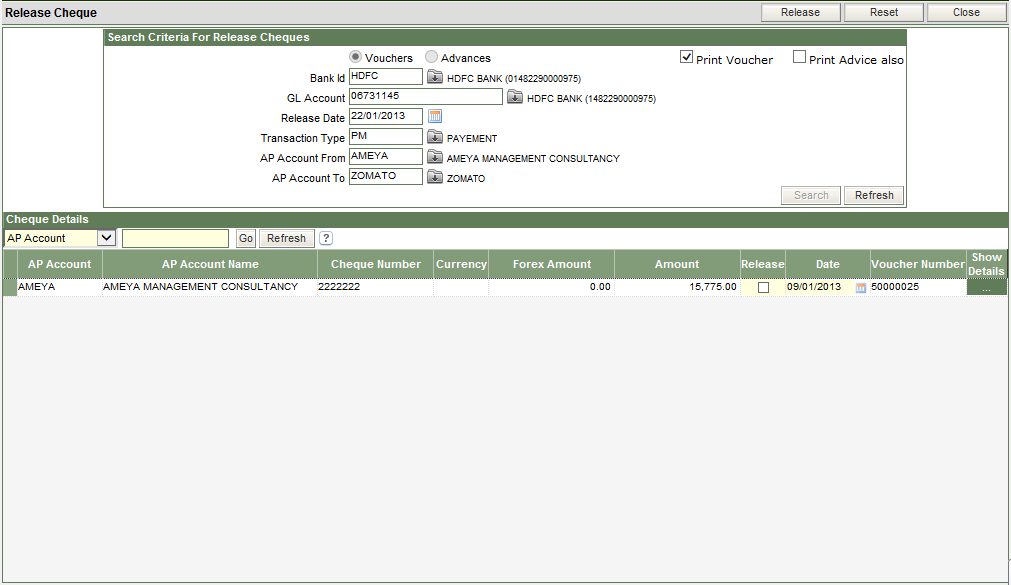
The top half (APR Fig 2.) of the screen displays the header information of the cheque that has to be released, i.e. Vendor Id, Bank ID, the GL account code of the Bank.
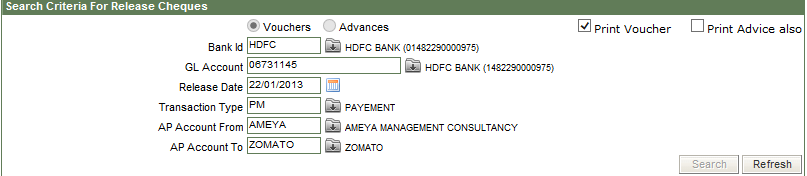
Enter the Release Date that is the date on which the cheque is being released.
The transaction type is PM (Payment).
It is only when a cheque is released in the system, does the application record a payment transaction.
By default the option of Print Voucher is ticked. Payment Advice can also be printed by ticking the option of Print Advice also.
The lower half of the screen (APR Fig 3) displays the cheque that has been printed.

To release the cheque tick the check box in the Release column and click on the Release button, present on the top of the screen.
The Payment Voucher is printed
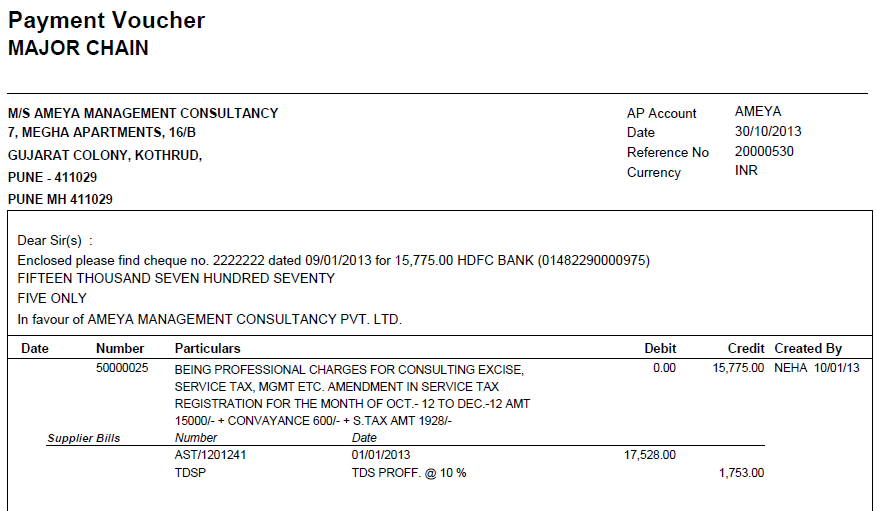
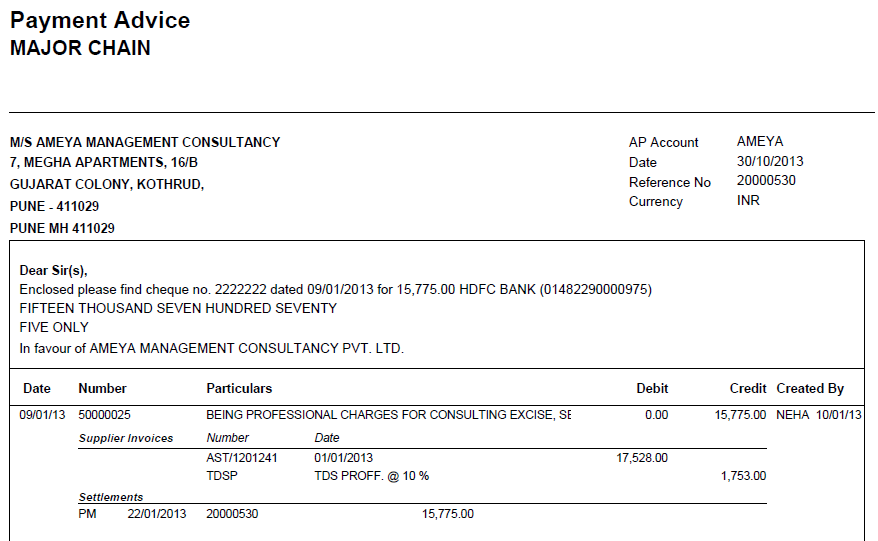
The payment advice is printed (if the option is chosen)